

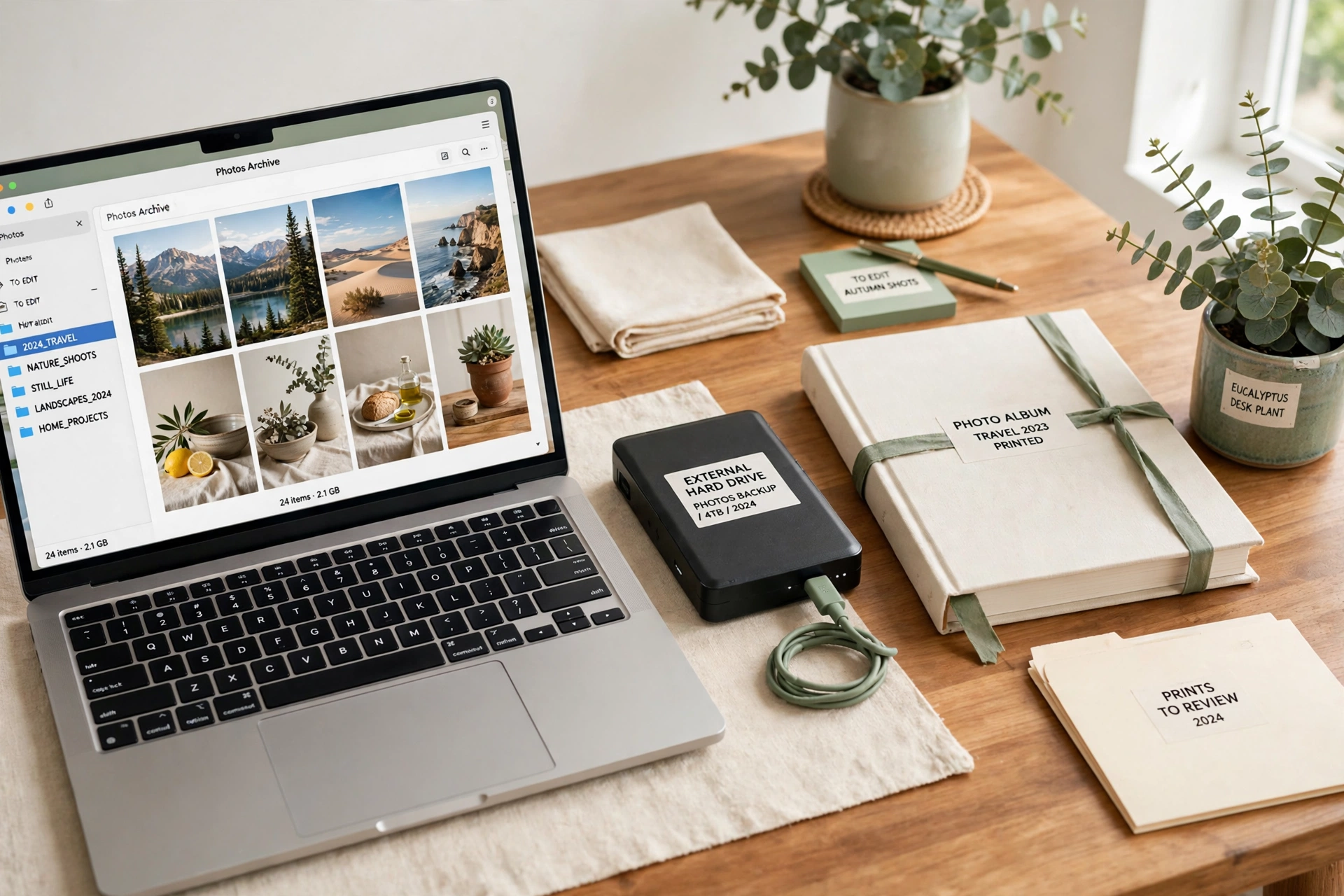
Picture this: you open your phone to find one perfect photo from last summer, and instead of scrolling for twenty minutes, you find it in seconds. That calm feeling is exactly what a well organized photo library gives you every single day. When thousands of pictures have a clear home, every memory stays easy to find and easy to enjoy.
You do not need expensive software or a whole weekend to get there. All you need is a simple system and a little time each week. These 18 digital photo organization ideas for thousands of pictures will help you sort, back up, and enjoy your photos without the overwhelm.
1. Create One Master Photo Folder
Start with one master folder on your computer that holds every photo you own. Give it a clear name like Family Photos and place it in a spot you will always remember. When every picture lives in one place, you stop hunting through downloads, desktops, and old memory cards.
Move photos from your phone, camera, and old folders into this master folder in small batches. Work through one device at a time so the task never feels too large. A single home for your photos is the foundation of every other idea in this list.
2. Sort Photos by Year and Month
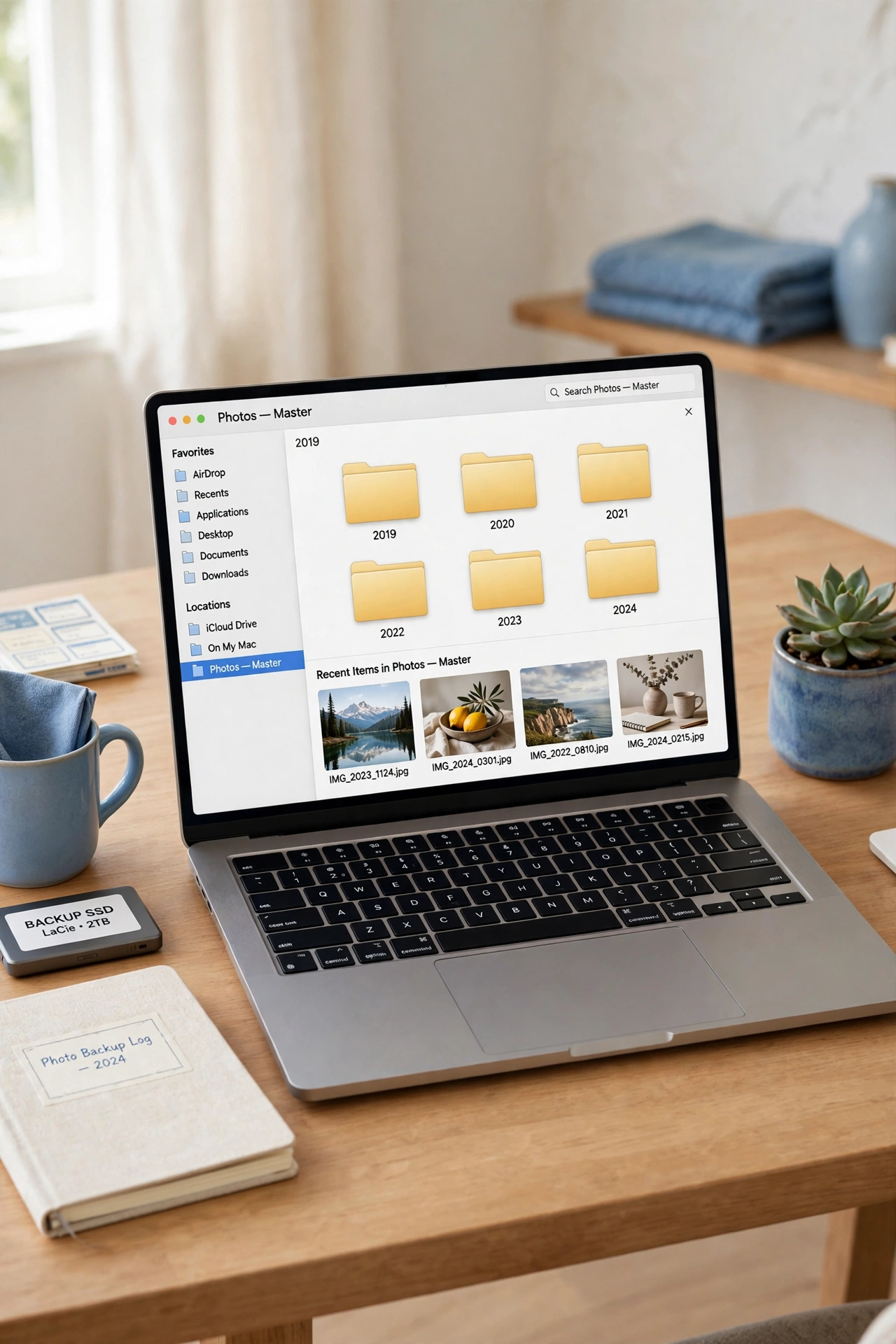
Inside your master folder, create one folder for each year, then one folder for each month inside it. A structure like 2026, then 01 January, 02 February, makes it easy to find photos from any point in time. You can open a year and see the whole story at a glance.
Sort photos by the date they were taken, not the date you moved them. Most photo apps can sort by capture date automatically, which saves hours of manual work. A year and month system works for ten thousand photos just as well as it works for one thousand.
3. Use a Clear Naming System for Files
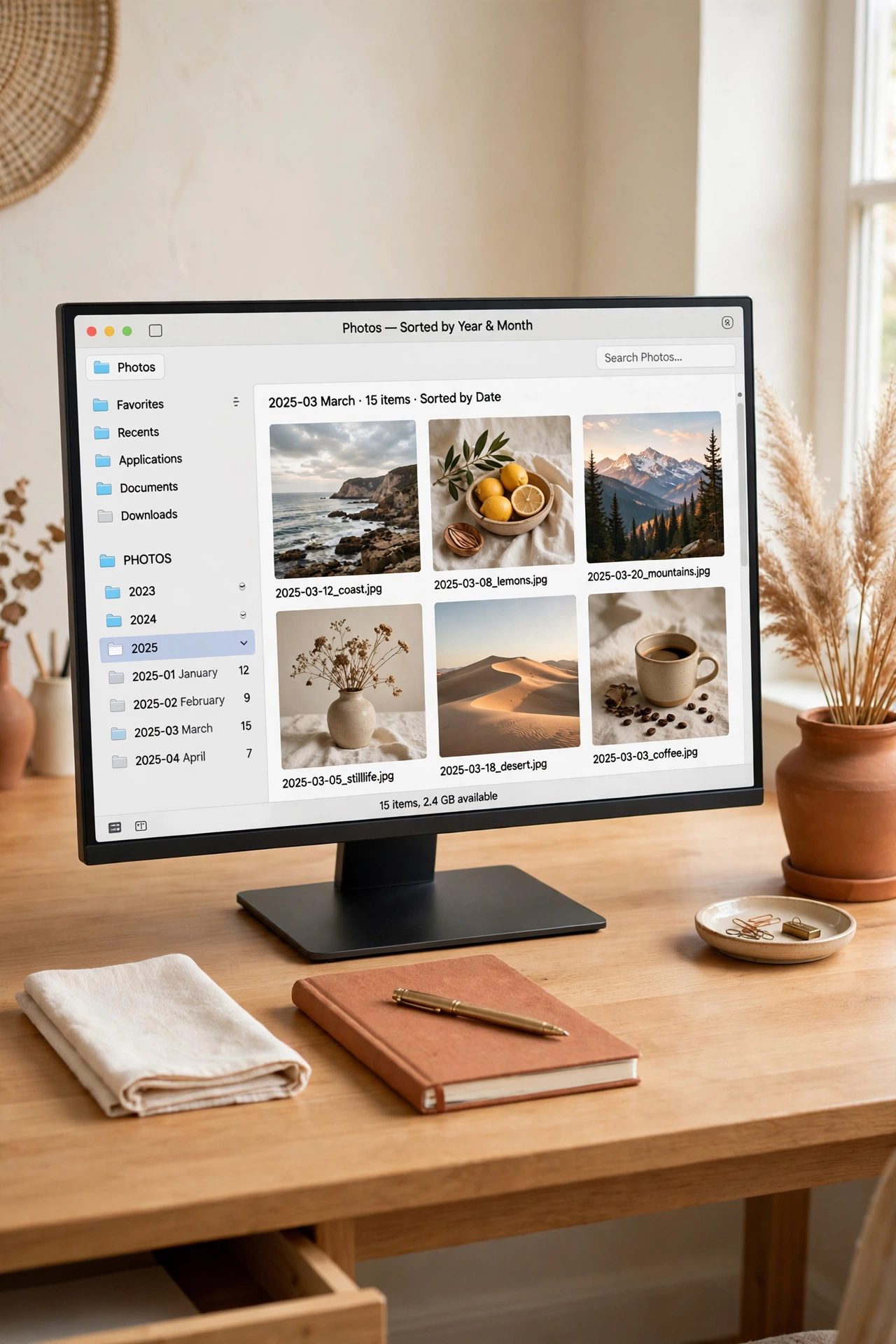
Give your photo files names that tell you what they show. A name like 2026-05-12-garden-birthday-001 is far more useful than IMG_4829. When you search for a word like birthday, the right photos appear at once.
Pick one naming pattern and use it for every new photo you add. You can rename files in batches with free tools that add dates and keywords automatically. A clear name turns a random file into a memory you can actually find again.
4. Delete Duplicates and Blurry Shots First
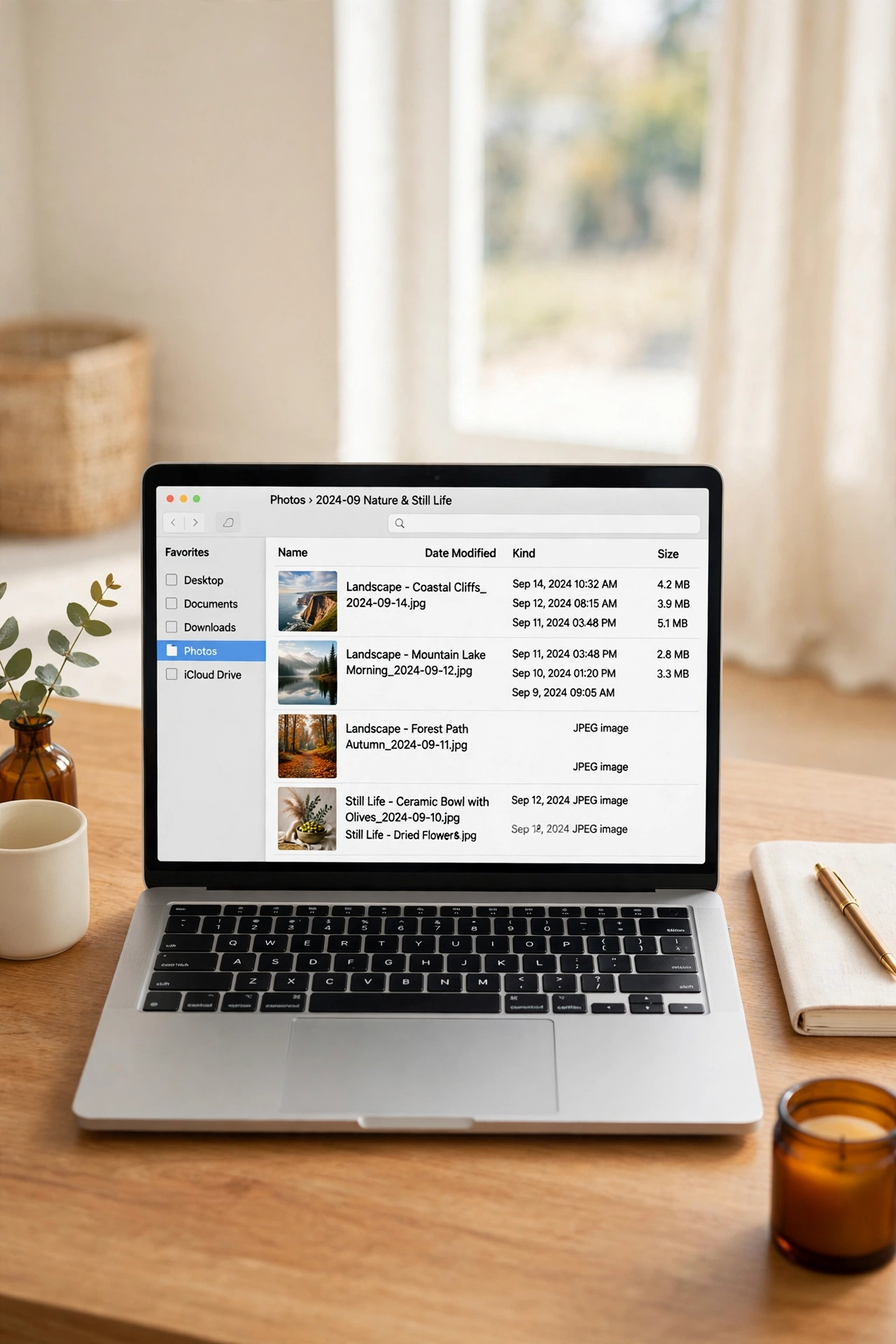
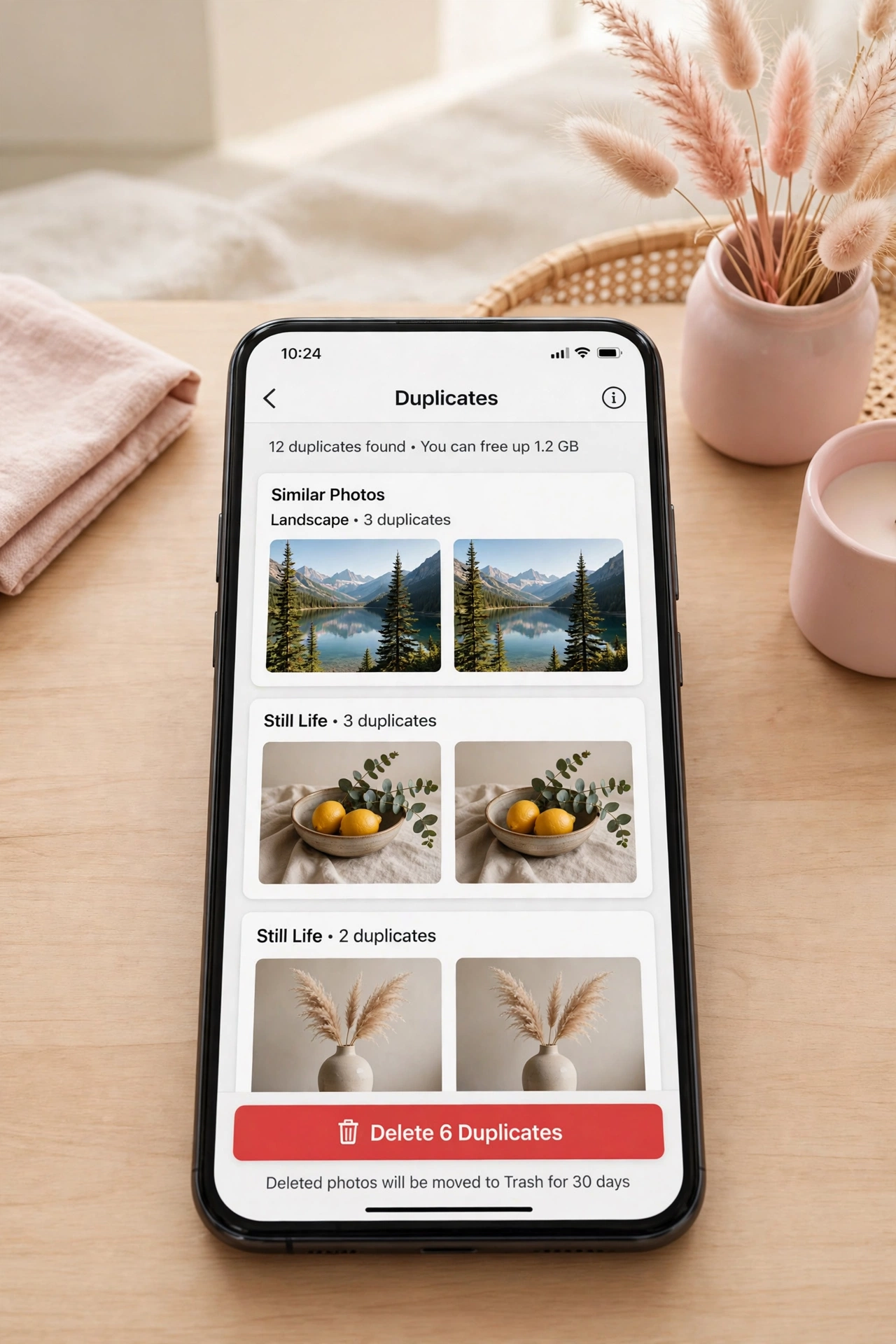
Before you organize anything, remove the photos you will never need. Delete exact duplicates, accidental bursts, and blurry shots where the subject is out of focus. Most libraries shrink by a third once the clutter is gone, which makes every later step faster.
Use a duplicate finder app to catch copies hiding in different folders. Then spend ten minutes a day deleting the obvious failures by hand. A smaller library is a calmer library, and you will enjoy browsing it far more.
5. Back Up Photos to an External Hard Drive
An external hard drive gives your photos a safe second home outside your computer. Copy your whole master folder to the drive once a month and keep the drive in a safe spot away from your desk. If your computer ever fails, your memories stay safe on the drive.
Choose a drive with enough space for years of photos and label it clearly so you know what it holds. A tidy backup routine pairs well with a tidy workspace, and these computer desk organization ideas will help you give the drive a proper home on your desk. One drive, one habit, and your photos are protected.

6. Use a Cloud Service as a Second Backup
A cloud service stores a copy of your photos far away from your home, which protects them from fire, theft, and floods. Set your photo app to upload new pictures automatically so the backup happens without you thinking about it. The cloud copy and the hard drive copy together give you real peace of mind.
Pick one cloud service and learn how it handles folders and albums before you upload everything. Check once a month that new photos are actually syncing. Two backups in two places is the simple rule that keeps family photos safe for decades.

7. Organize Photos by Event, Not by Date Only
Dates tell you when a photo was taken, but events tell you why it matters. Create folders or albums for birthdays, holidays, school plays, and family trips inside each year folder. An event name makes it easy to find the photos from one special day.
Keep event folders short and clear, like Summer Beach Trip or Grandma 70th Birthday. Add the year to the folder name so events from different years never mix. When you want to relive one day, the event folder takes you straight there.
8. Create a Favorites Folder for the Best Shots
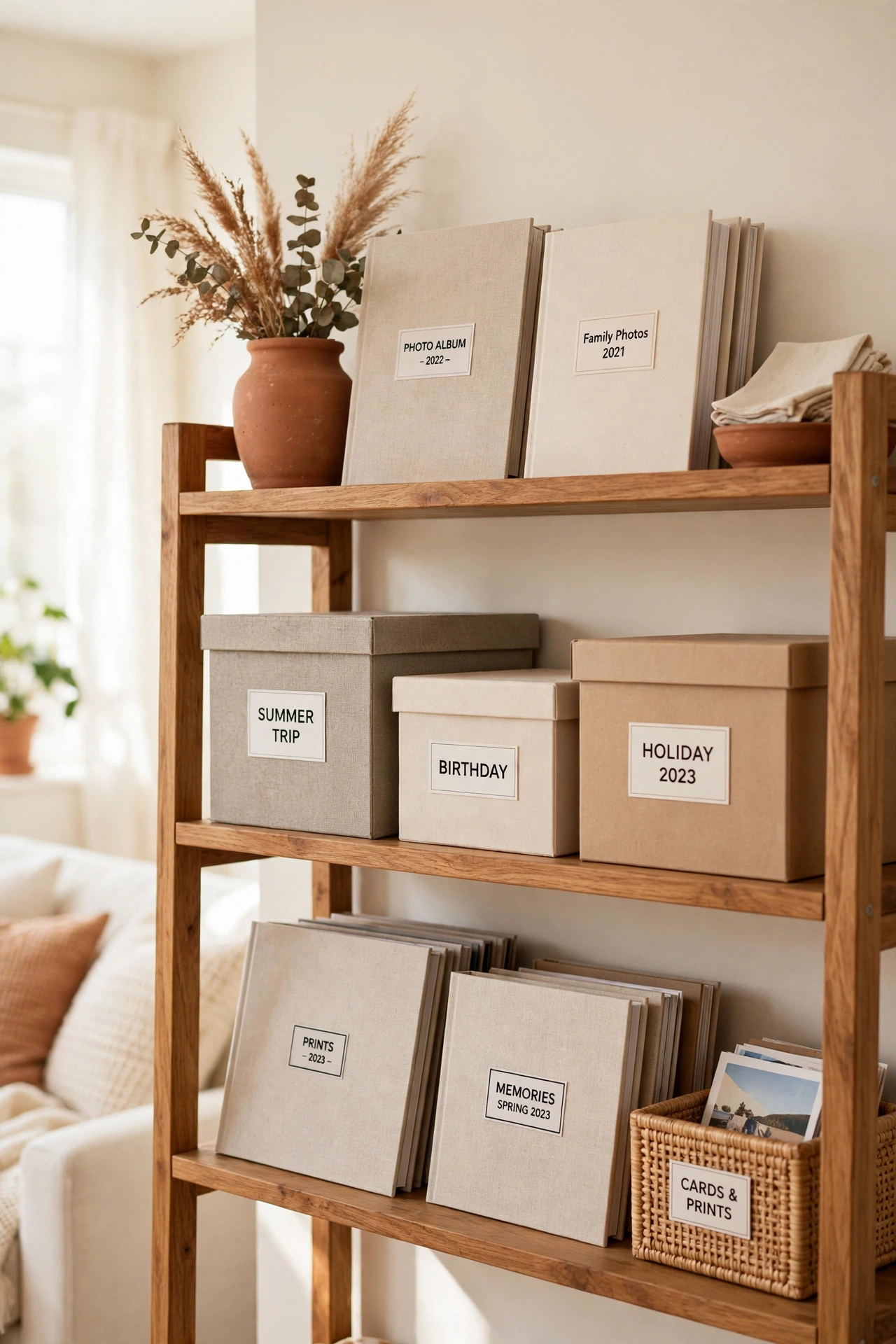
Out of thousands of photos, only a few hundred are truly special. Create a favorites folder and copy your very best shots into it as you browse. These are the photos you would print, frame, or share with family first.
Star or heart your favorites inside your photo app so the folder updates itself over time. When you need a photo for a gift or a card, the favorites folder is the first place to look. Your best memories deserve a shortcut of their own.

9. Tag Faces and Places in Your Photo App
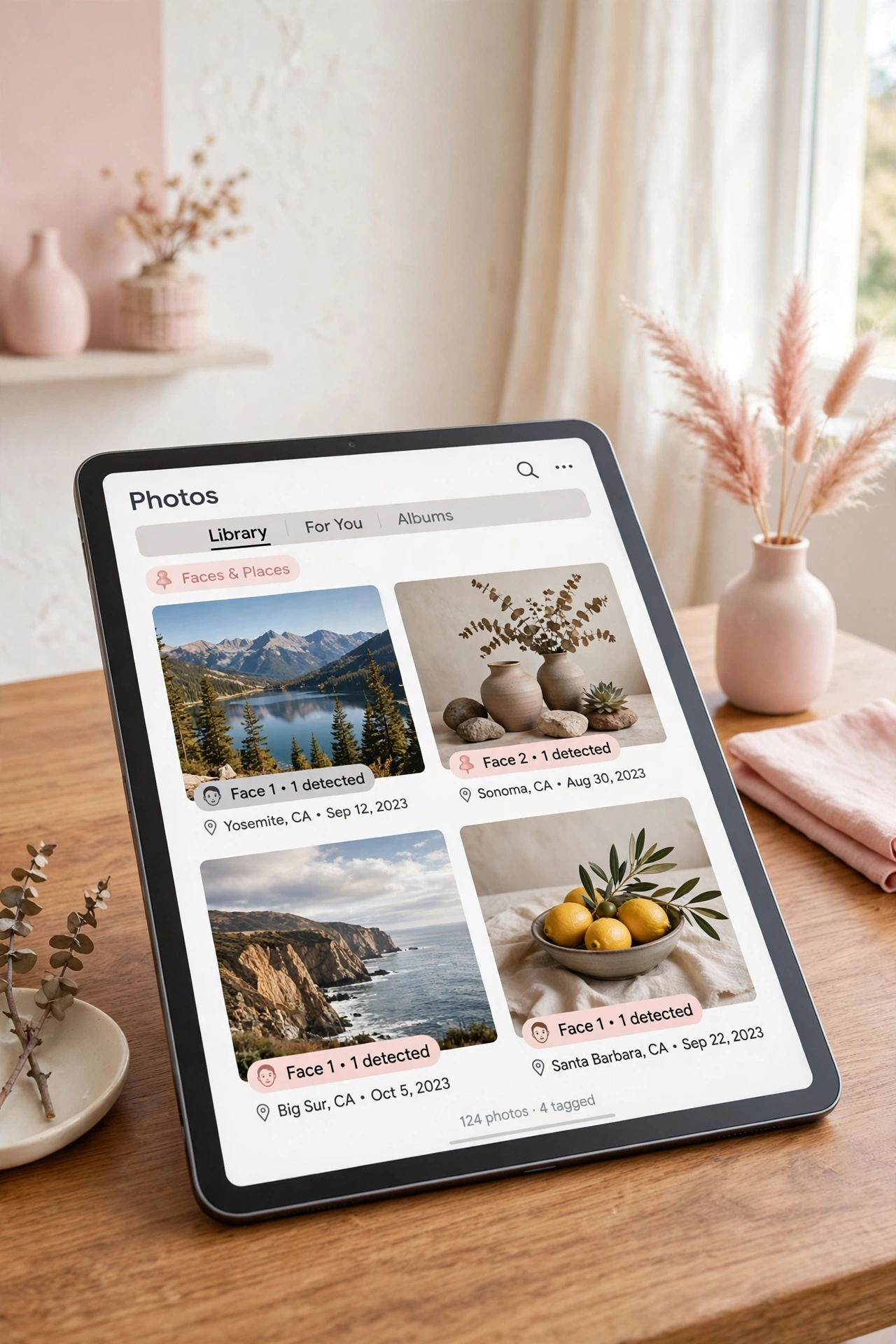
Most photo apps can recognize faces and places if you turn the feature on. Tag each family member once and the app will group their photos for you. Add location tags to trips and holidays so you can search for a place name and see every photo from that spot.
Review the automatic tags once in a while and fix any mistakes, since the app can mix up similar faces. Good tags turn a search box into a time machine. Type a name or a city and the memories appear in seconds.
10. Scan Old Printed Photos Into Digital Files
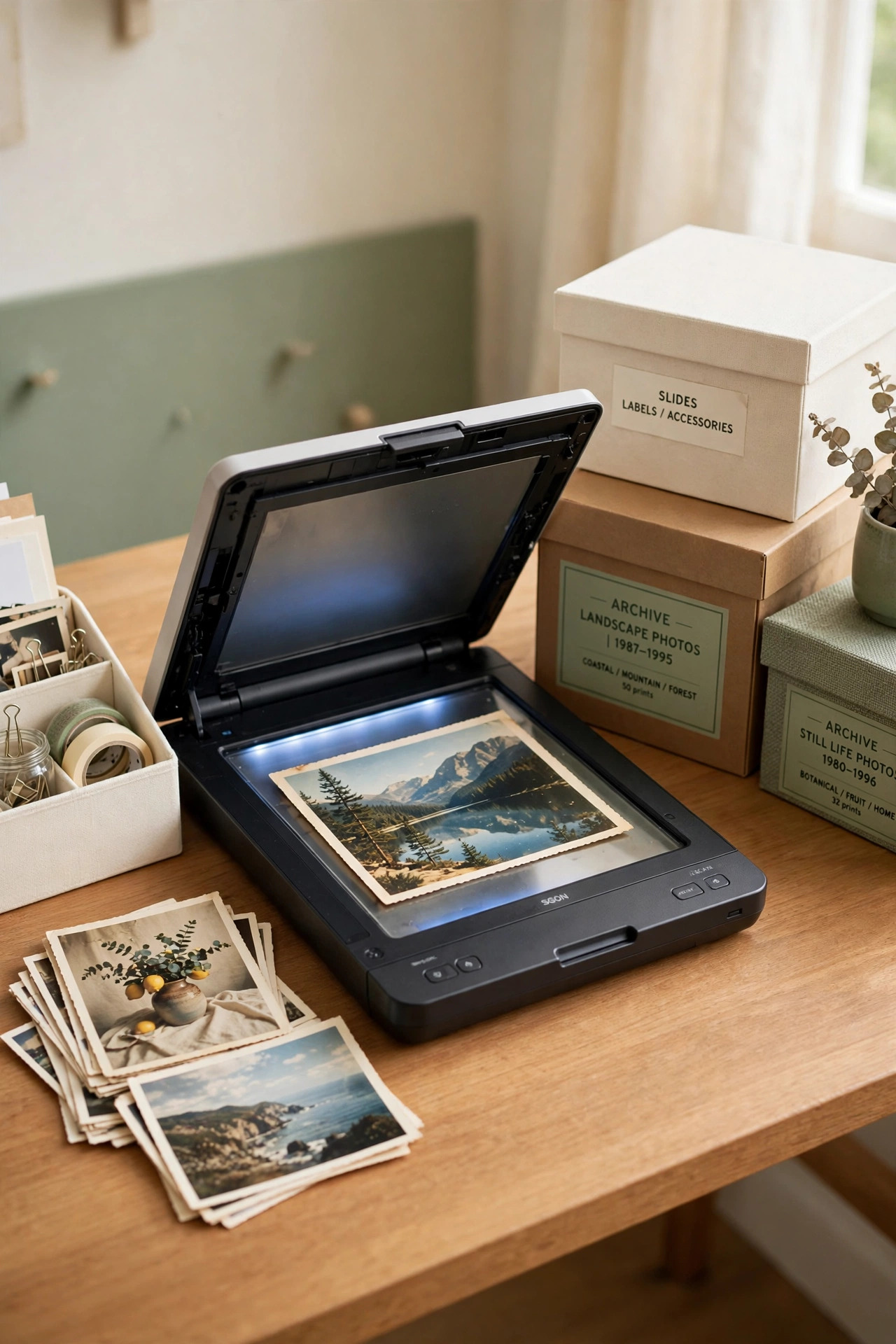
Old printed photos fade, tear, and get lost in boxes. Scan them into digital files so they live safely beside your newer pictures. A flatbed scanner or a phone scanning app can capture a whole box of prints in a few evenings.
Scan at a high resolution and save the files with the year and event in the name. Store the original prints in labeled boxes once they are scanned, and these important document storage ideas will help you keep those paper originals safe for years. Scanning turns fragile paper into photos the whole family can enjoy.
11. Make a Yearly Photo Book from Your Best Shots
A printed photo book turns your best digital photos into something you can hold. At the end of each year, pick fifty to one hundred favorites and lay them out in a simple book. The book becomes a family treasure that gets opened far more often than a folder on a computer.
Keep the layout simple, with one or two photos per page and short captions under each one. Order one copy for your home and one as a gift for grandparents. A yearly book gives your digital photos a real life beyond the screen.

12. Use Albums for Holidays and Special Trips
Albums group photos around one story, which makes them perfect for holidays and special trips. Create one album per trip and add only the photos that tell the story well. Leave out the blurry shots and the near duplicates so the album stays fun to browse.
Share the finished album with the family members who were there. Most photo apps let you share a link that others can view without an account. A good album turns a trip into a story everyone can revisit together.
13. Set Up Automatic Uploads from Your Phone
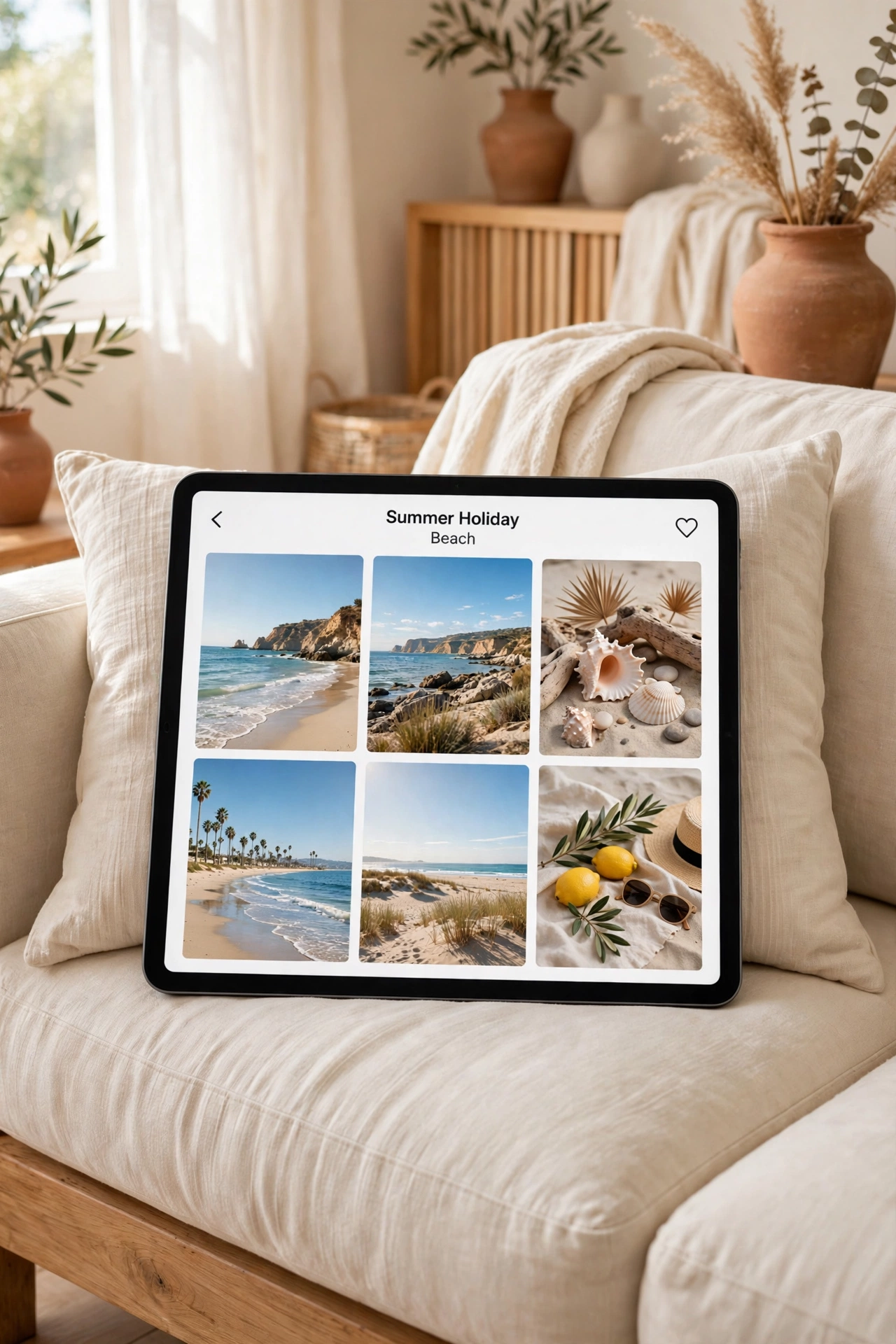
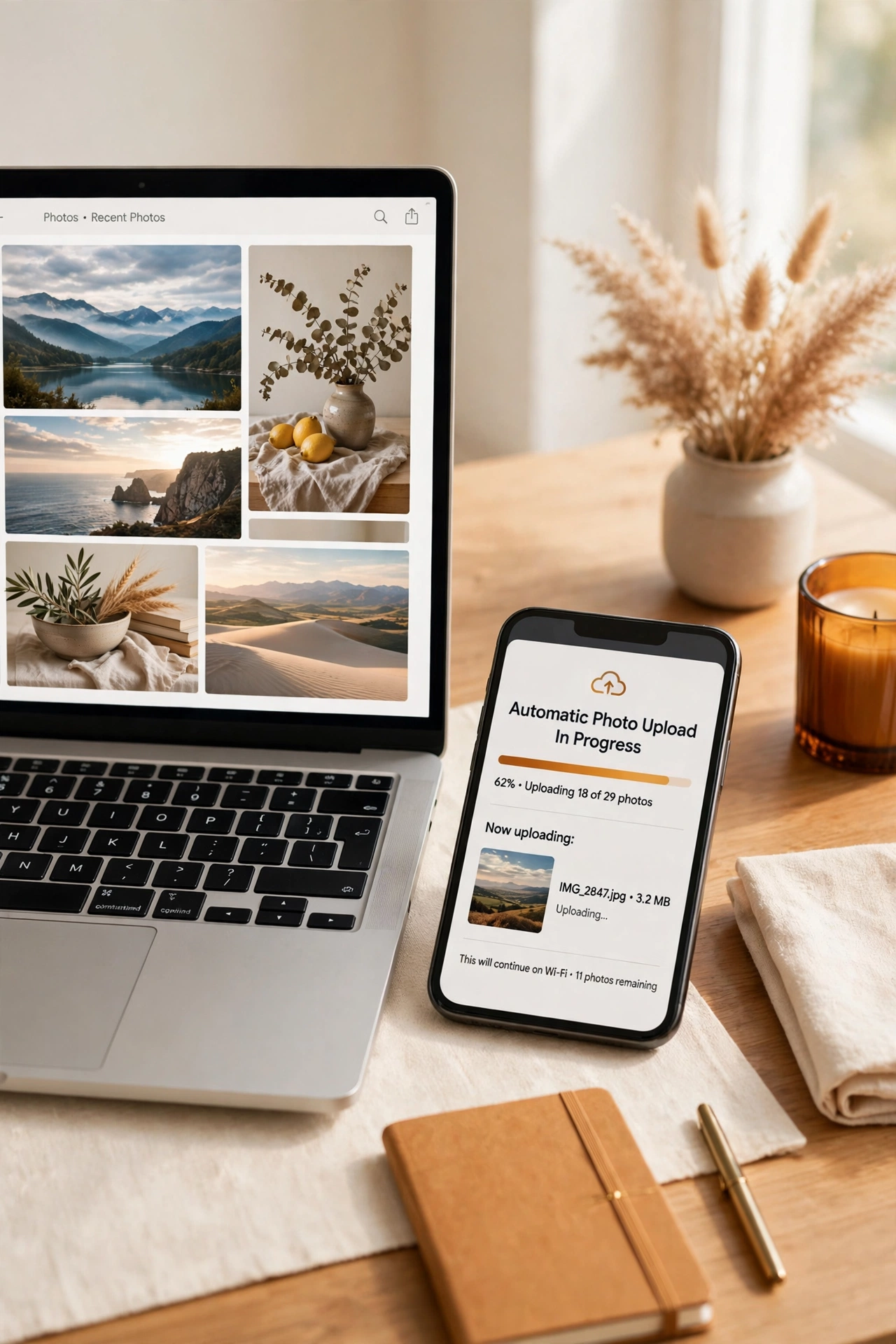
Your phone takes most of your photos, so let it upload them by itself. Turn on automatic upload in your cloud app so every new photo copies to your library the moment you reach Wi-Fi. You never have to remember to transfer photos again.
Check your phone storage once a month and free up space once the uploads are confirmed. Automatic uploads mean no photo is ever stuck on one device. The habit takes five minutes to set up and saves hours over the year.
14. Label Storage Drives with Clear Printed Tags
When you own more than one drive or memory card, labels stop the guessing. Print a small tag for each drive that says what it holds and which years it covers, like Photos 2020 to 2024. Stick the tag where you can read it without plugging the drive in.
Store labeled drives together in one box or drawer so they are easy to find. A clear label saves you from opening five drives to find one photo. Small labels make a big difference when your collection grows.

15. Keep a Digital Scrapbook for Family Milestones
A digital scrapbook collects photos, tickets, and notes from the big moments in family life. Create one scrapbook page for each milestone, like a first birthday, a graduation, or a new home. Add short captions so future readers know the story behind each photo.
Update the scrapbook on the same day as the event, while the details are still fresh. A simple slide deck or a notes app works just as well as a fancy scrapbook tool. For more ideas on keeping family plans and milestones in order, see these family calendar and paperwork organization ideas. Milestones deserve a record that lasts.

16. Create a Shared Family Album Everyone Can Add To
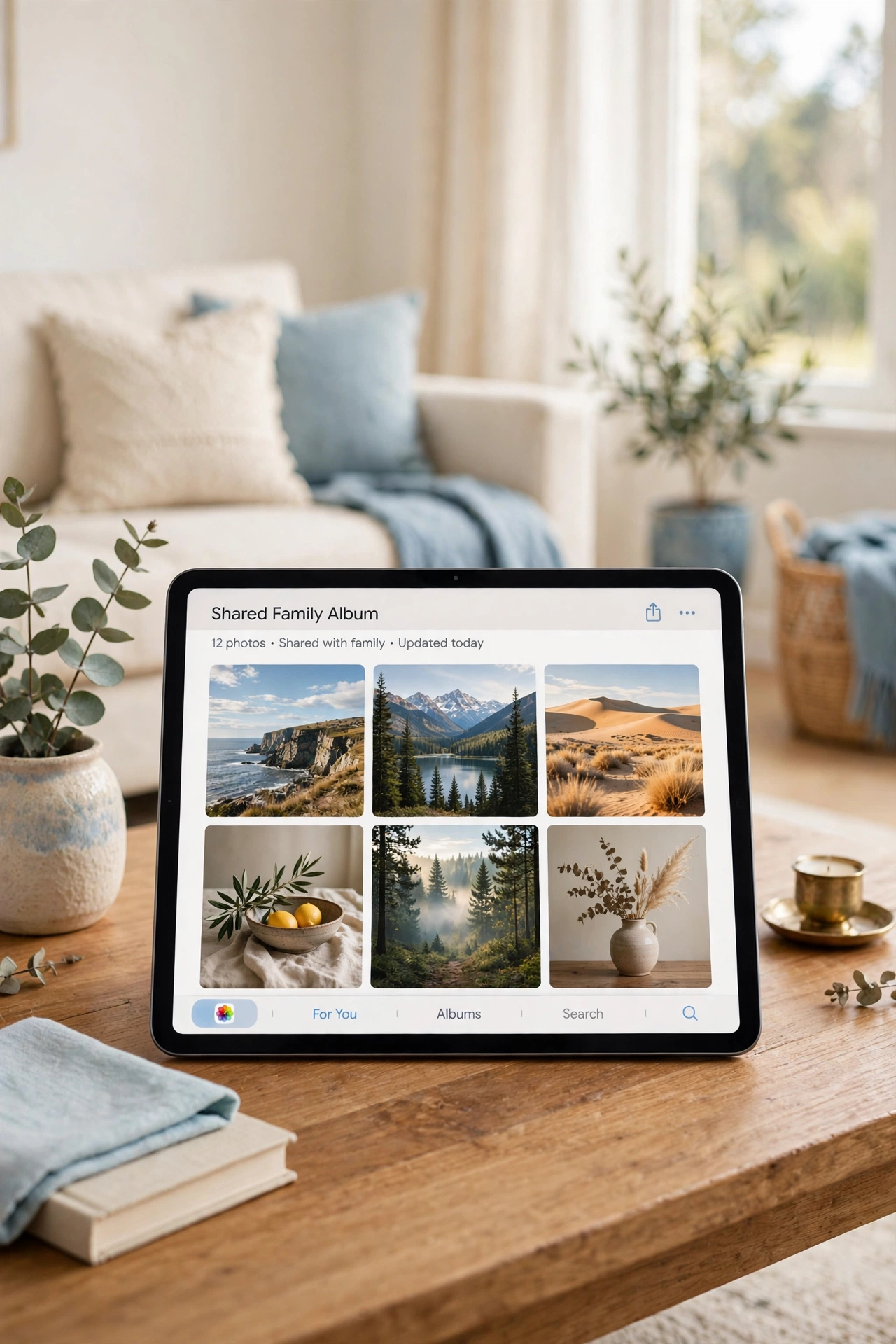
A shared album lets every family member add photos from their own phone. Create one album for the whole family and invite everyone to join. Grandparents, siblings, and cousins can all add their view of the same event.
Set a simple rule that only real photos go in the album, not screenshots or memes. Check the shared album once a week and move the best shots into your master folder. A shared album turns photo organizing into a family habit instead of a solo chore.
17. Use a Slideshow Frame to Enjoy Old Photos Daily
A digital photo frame on a shelf or side table plays your photos as a gentle slideshow all day. Load it with your favorites folder and let old memories appear while you cook, read, or relax. The frame turns a forgotten folder into a living display.
Refresh the frame every season with new favorites so the slideshow never feels stale. Place it where the family gathers most, like the living room or the kitchen. Photos you never see are photos you never enjoy, and a frame fixes that.

18. Schedule a Monthly Photo Cleanup Day
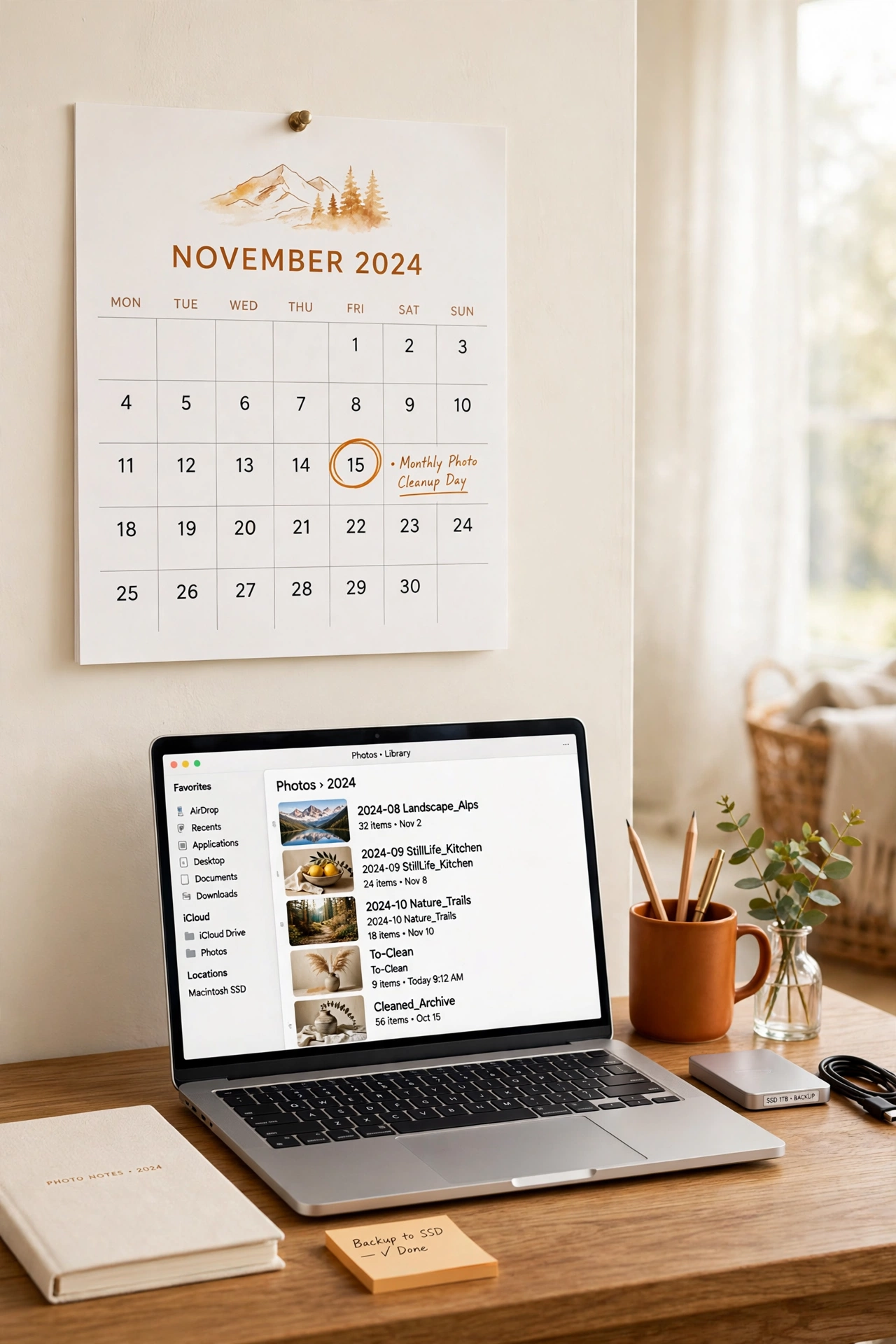
Photo organization works best as a small monthly habit, not a once a year marathon. Pick one day each month to delete bad shots, back up new photos, and move favorites into their folders. Thirty minutes a month keeps the whole system healthy.
Put the cleanup day on your calendar so it becomes a real appointment. Play music while you work and enjoy browsing the month you just lived through. A little regular care keeps thousands of pictures tidy for years to come.
Conclusion
Thousands of photos feel overwhelming only when they have no system. From one master folder to a monthly cleanup day, each idea here gives your pictures a clear home and a safe backup. The best system is the one you will actually keep using month after month.
Pick one or two ideas that fit your life and start today. Sort one month of photos, set up one backup, and enjoy finding a favorite memory in seconds. For a calm home beyond the photo library, these nightly reset routine ideas will help you keep every room organized with just a few minutes each evening.
Frequently Asked Questions About Digital Photo Organization Ideas for Thousands of Pictures
How do I start organizing thousands of photos?
Start with one master folder and sort photos by year and month. Delete duplicates and blurry shots first so the library shrinks before you organize it. Work in small batches of one device or one month at a time so the task never feels too large.
What is the best way to back up digital photos?
Keep three copies of your photos: one on your computer, one on an external hard drive, and one in a cloud service. Update the hard drive once a month and let the cloud upload new photos automatically. Three copies in two places protect your photos from almost any disaster.
Should I keep printed photos after scanning them?
Yes, keep the original prints in labeled boxes in a cool, dry place after scanning. The digital copy is for everyday viewing and sharing, while the original is the true keepsake. Store the boxes with your other important papers, and these receipt organization ideas will help you keep household paper records tidy alongside them.
How do I organize photos on my phone?
Turn on automatic upload so new photos copy to your library right away. Then use albums, favorites, and face tags inside your photo app to sort them. Delete bad shots each week so the phone library stays small and fast.
How often should I back up my photos?
Back up new photos at least once a month, and right away after a big event like a holiday or a birthday. Automatic cloud uploads handle most of this for you. Check once a month that both backups are actually working.

Hi, I’m Emily! I turn messy corners into cozy, organized spots. DreamNestDecor is where I share simple, practical home ideas — decor, organization, and small-space solutions that work in real life, not just in photos. Every idea here is carefully researched before it’s shared.