
Picture this: the school asks for a copy of a vaccination record, the tax preparer asks for last year statements, and a plumber asks for the warranty for a water heater, all in the same week. You open your computer and search through downloads, email attachments, and a desktop crowded with files named scan001 and document2, and the papers you need seem to hide exactly when you need them most. That familiar scramble is not a sign of a disorganized home. It is a sign that your family papers never received a simple system.
You do not need special software or hours of free time to fix it. All you need is one clear structure, one naming rule, and a routine you can keep up in a few minutes each week. These 31 digital file organization ideas will help you turn scattered family documents into a calm, searchable system for scanning, naming, storing, backing up, and sharing the records your household relies on every day.
1. Start With One Master Family Folder
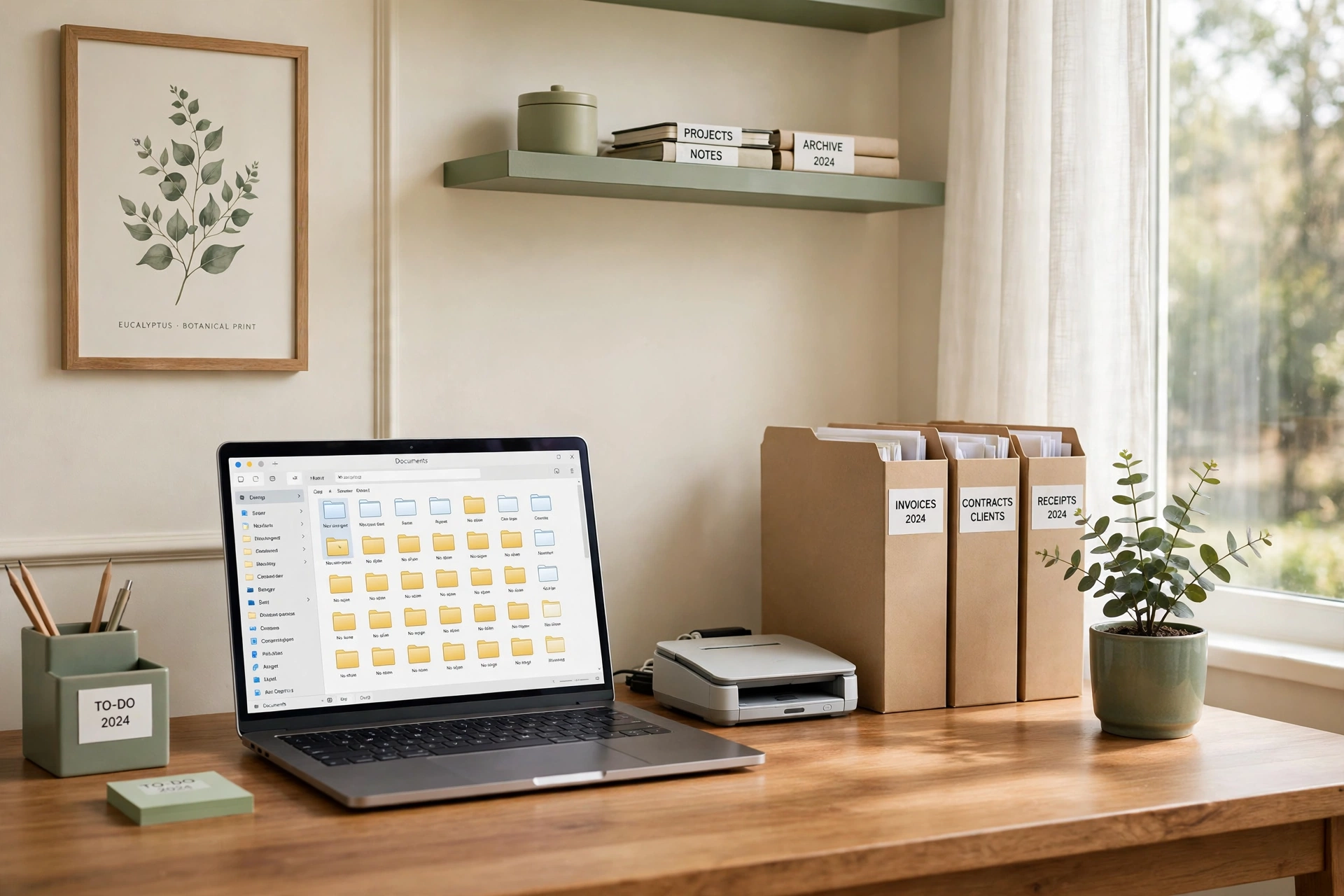
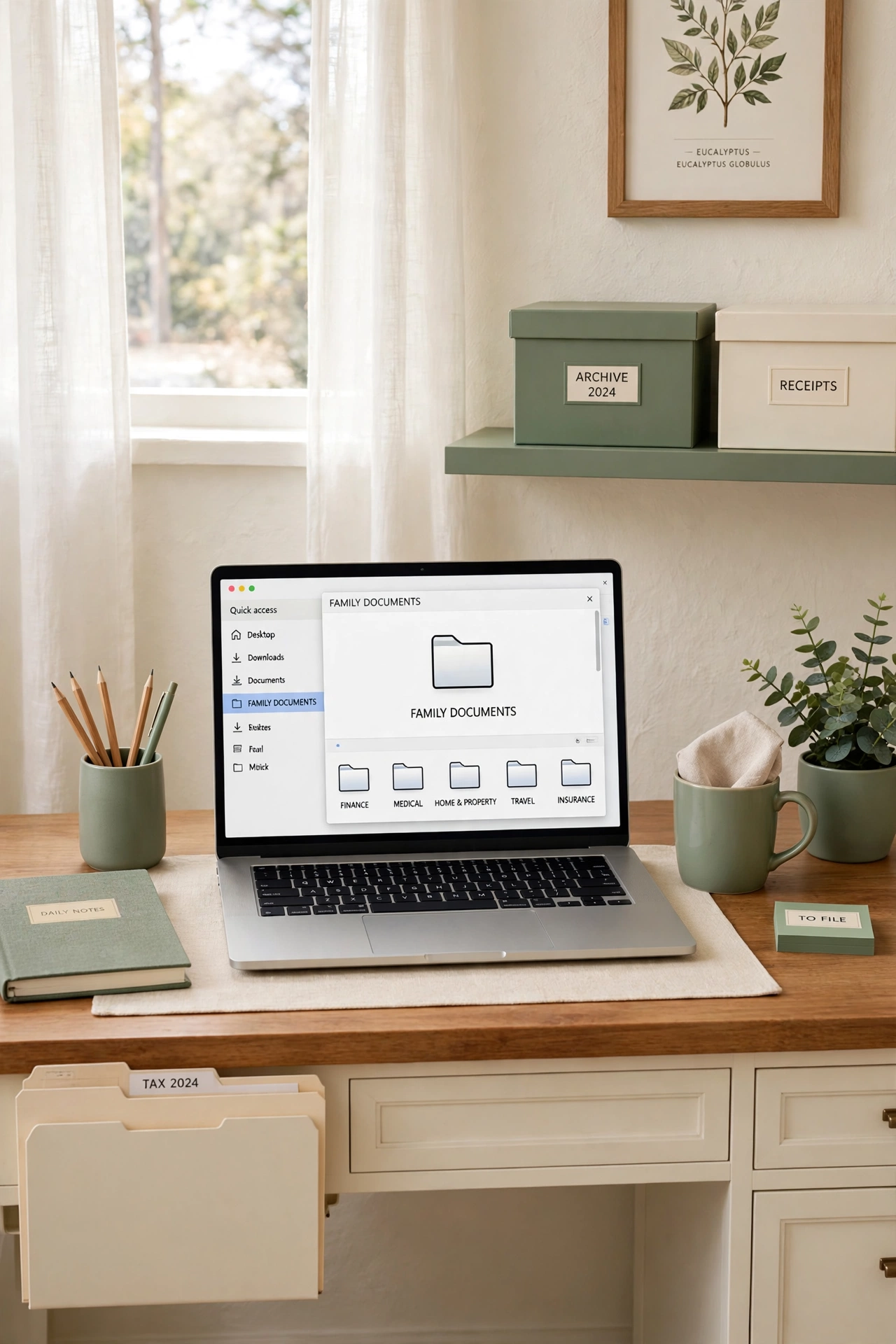
Every digital filing system works better when it starts in one place. Create a single master folder called Family Documents on your computer or in your cloud storage, and let every family record live inside it. When every file has one home base, you stop guessing whether a document lives on a laptop, in email, or in a random download folder.
Keep the master folder easy to find by placing a shortcut on your desktop and pinning it in your file manager. Inside the master folder, add only top-level category folders at first, such as Finance, Medical, School, Home, and Legal. A shallow structure with clear categories is easier to navigate than a deep maze of folders inside folders.
2. Create a Top-Level Folder for Each Family Member
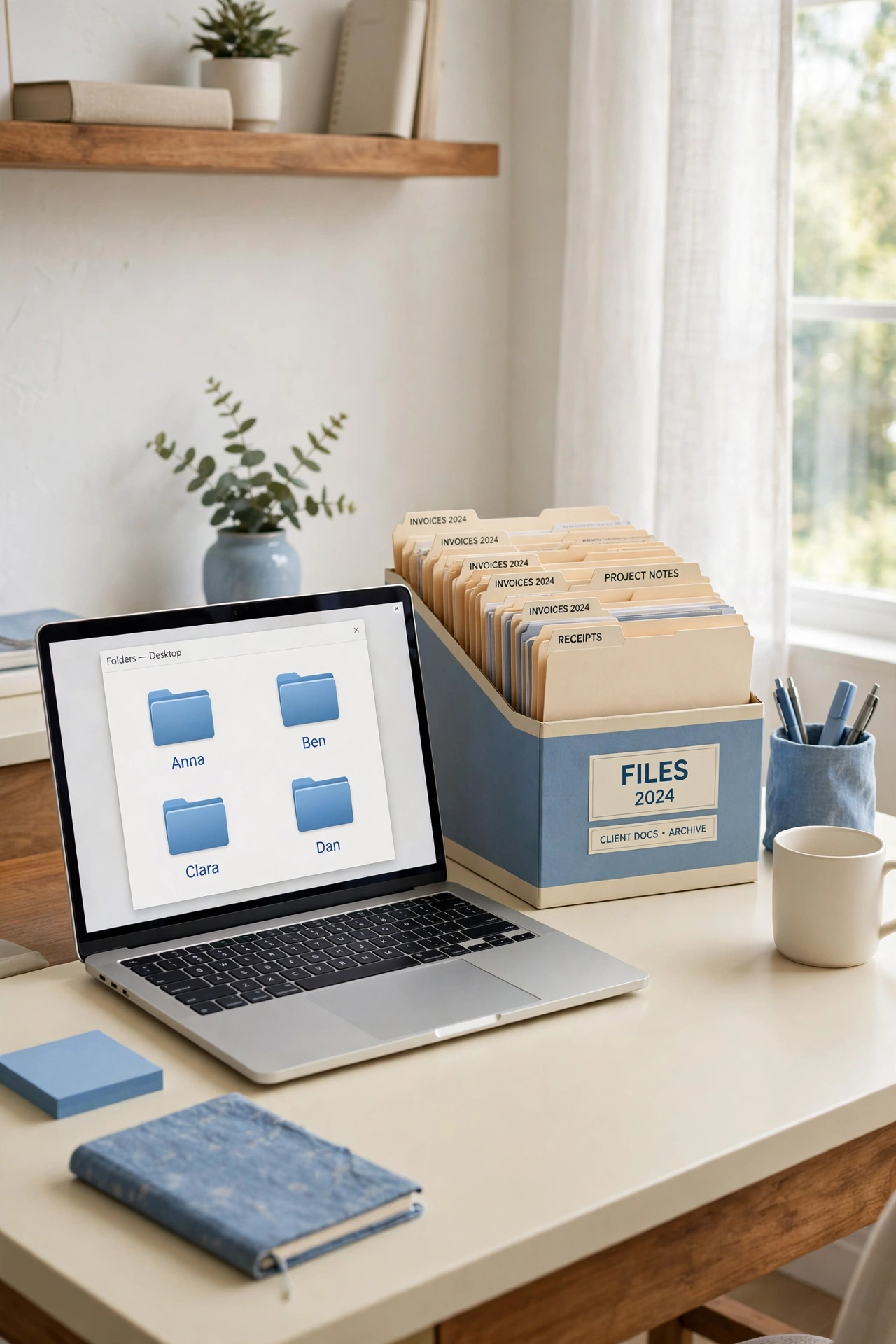
When several people share one household system, personal records can blend together and become hard to find. Give each family member a folder inside the master folder, using first names only, and store personal medical forms, school records, and identification copies in the matching folder. Shared household records can stay in shared category folders, while personal records stay clearly separated.
Use the same subfolder names inside each personal folder so the pattern is easy to learn. For example, each person can have Medical, School or Work, Legal, and Personal subfolders with the same spelling every time. A consistent pattern means any family member can find a file in another folder without learning a new system each time.
3. Scan the Paper Pile One Drawer at a Time
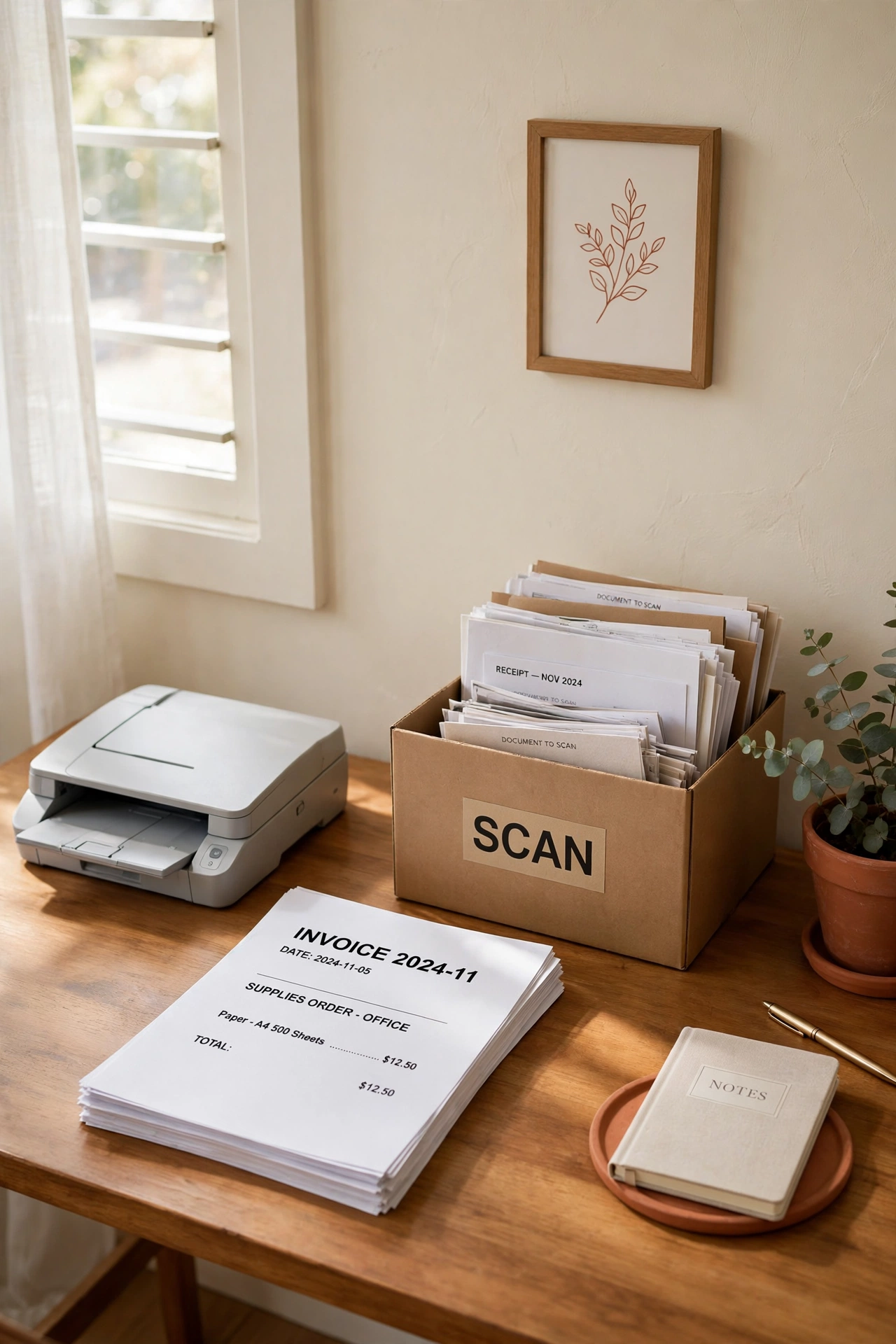
A tall stack of paper can make digital organizing feel impossible before you begin. Work through one drawer, one shelf, or one small pile at a time, and scan only the papers you truly need to keep. As each batch is scanned and filed, move the paper originals to a keep box or a shred box so the pile visibly shrinks and progress feels real.
Set a timer for thirty minutes and stop when it rings, even if the pile is not finished. Short sessions prevent fatigue and keep the project moving across several days instead of stalling after one long weekend. If paper keeps arriving faster than you can scan it, these paper clutter organization ideas will help you slow the flow at the source while your digital system catches up.
4. Use a Simple File Naming Rule for Every Document
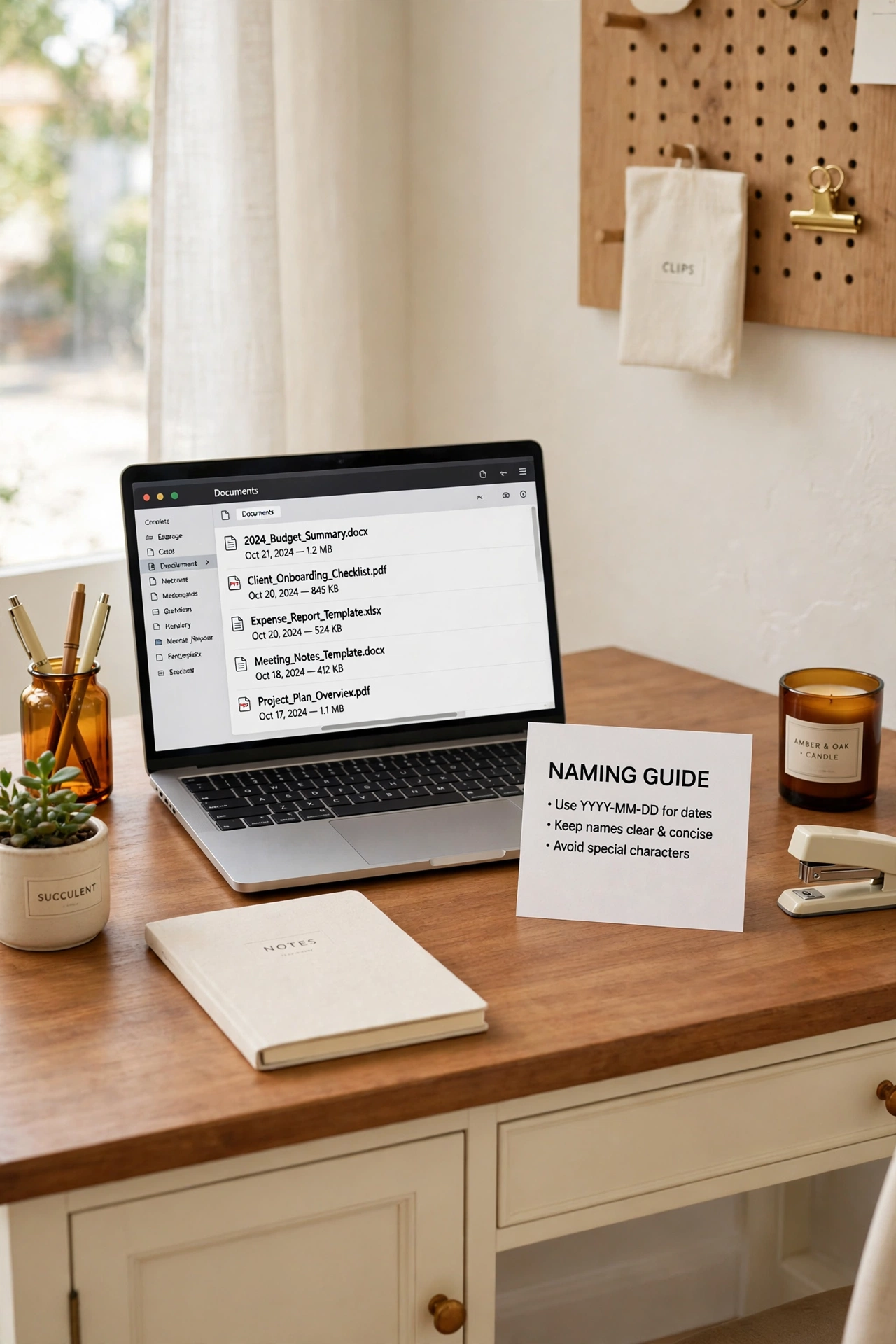
A clear file name is the fastest way to find a document without opening ten similar files. Choose one simple pattern and use it for every new file, such as category, description, and date, with words separated by hyphens. A name like Medical-Dental-Checkup-2026-03-14 tells you what the file is before you open it.
Write your naming rule on a small card near your desk until it becomes a habit. Avoid vague names like scan, document, or final, and avoid extra version words that multiply with every edit. When every file follows the same pattern, search results become useful instead of confusing, and sorting by name groups related records together.
5. Put the Date First in Every File Name
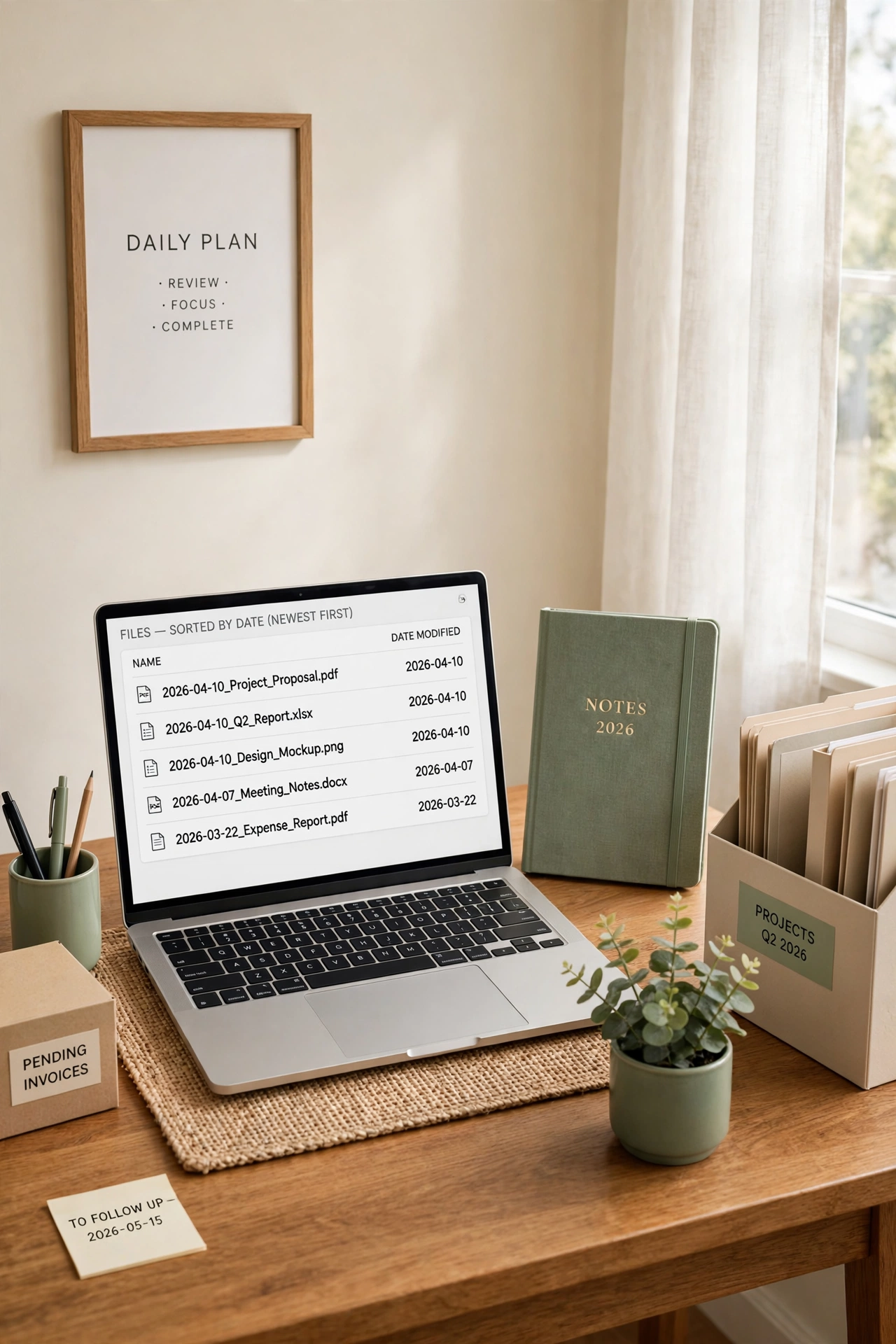
Starting file names with the date in year-month-day order is a quiet habit with a large payoff. Files sort themselves in true time order, so the newest statement, form, or letter always appears at the top or bottom of the list, exactly where you expect it. A name like 2026-04-10-Electric-Bill sorts correctly, while April Bill and Bill April never will.
Use the same four-digit year, two-digit month, and two-digit day format for every dated document. When a document covers a full month or a full year, use the first day of that period so it still sorts in the right place. This one habit makes tax season, warranty claims, and insurance questions faster, because the timeline of each folder reads like a clean history.
6. Build a Folder for Identity and Legal Documents
Identity and legal papers deserve their own folder with a serious and simple structure. Inside a folder called Legal and Identity, create subfolders for passports, birth certificates, marriage documents, wills, powers of attorney, and other legal papers your household keeps. Store clear scans of each document, and keep a note inside the folder about where the paper originals live.
Limit access to this folder to the adults who need it, and protect it with the strongest security your storage service offers. Never store legal scans in a shared downloads folder or on a borrowed device. A dedicated legal folder means you can answer an urgent request for a copy in minutes, without searching through unrelated household files.
7. Keep a Separate Folder for Tax Records by Year
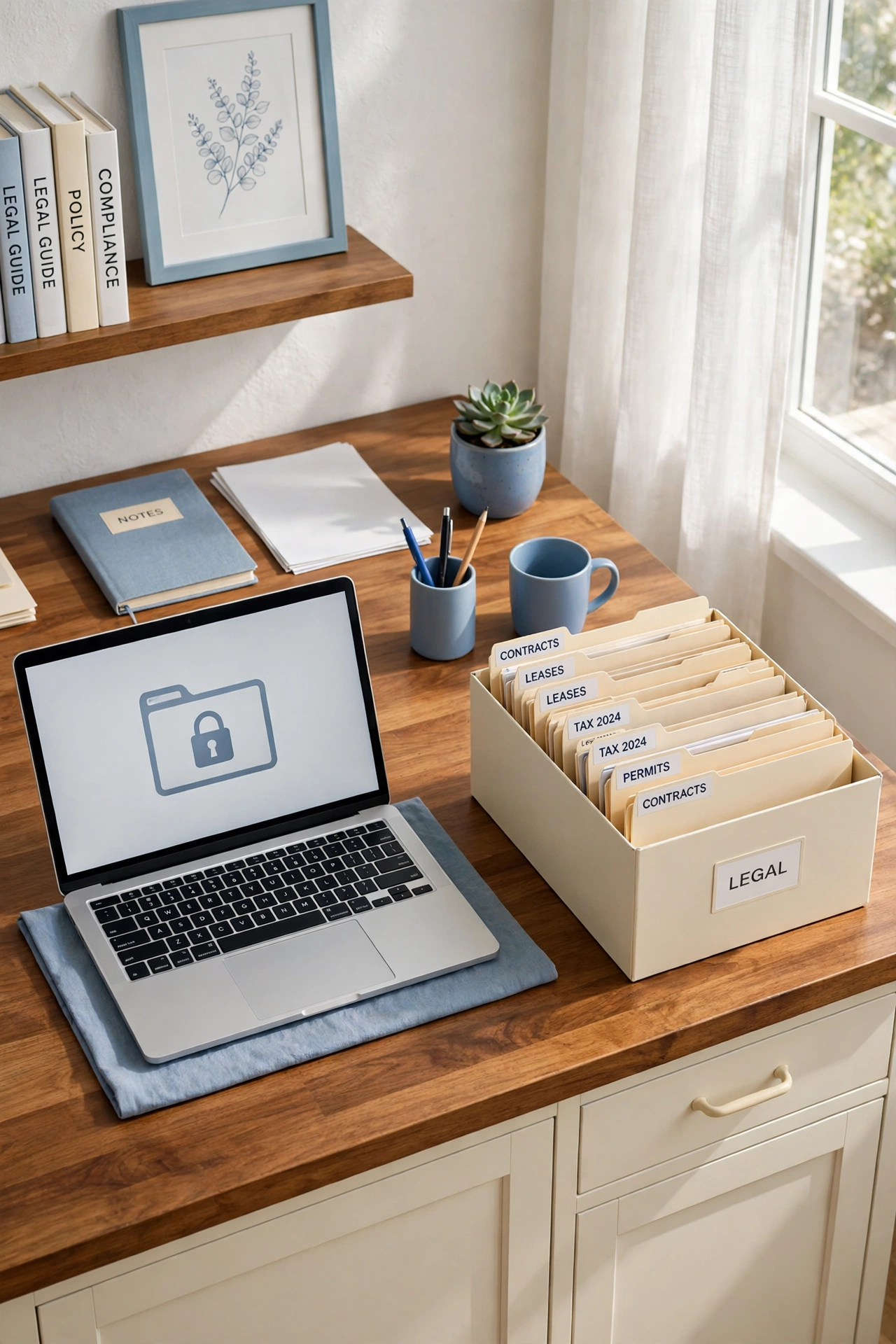
Tax records are easiest to manage when each year has its own folder and each folder follows the same inner layout. Create a Taxes folder, then add one subfolder per year, and inside each year add the same subfolders for income, deductions, receipts, and filed returns. When tax season arrives, everything for that year is already gathered in one place.
As new tax forms arrive through the year, file them in the current year folder on the same day you receive them. Add the year to every file name as well, so a misplaced file still reveals its year at a glance. At the end of the year, close the folder with a short summary note listing what is inside, and start a fresh folder for the new year.
8. Make a Medical Folder for Each Person
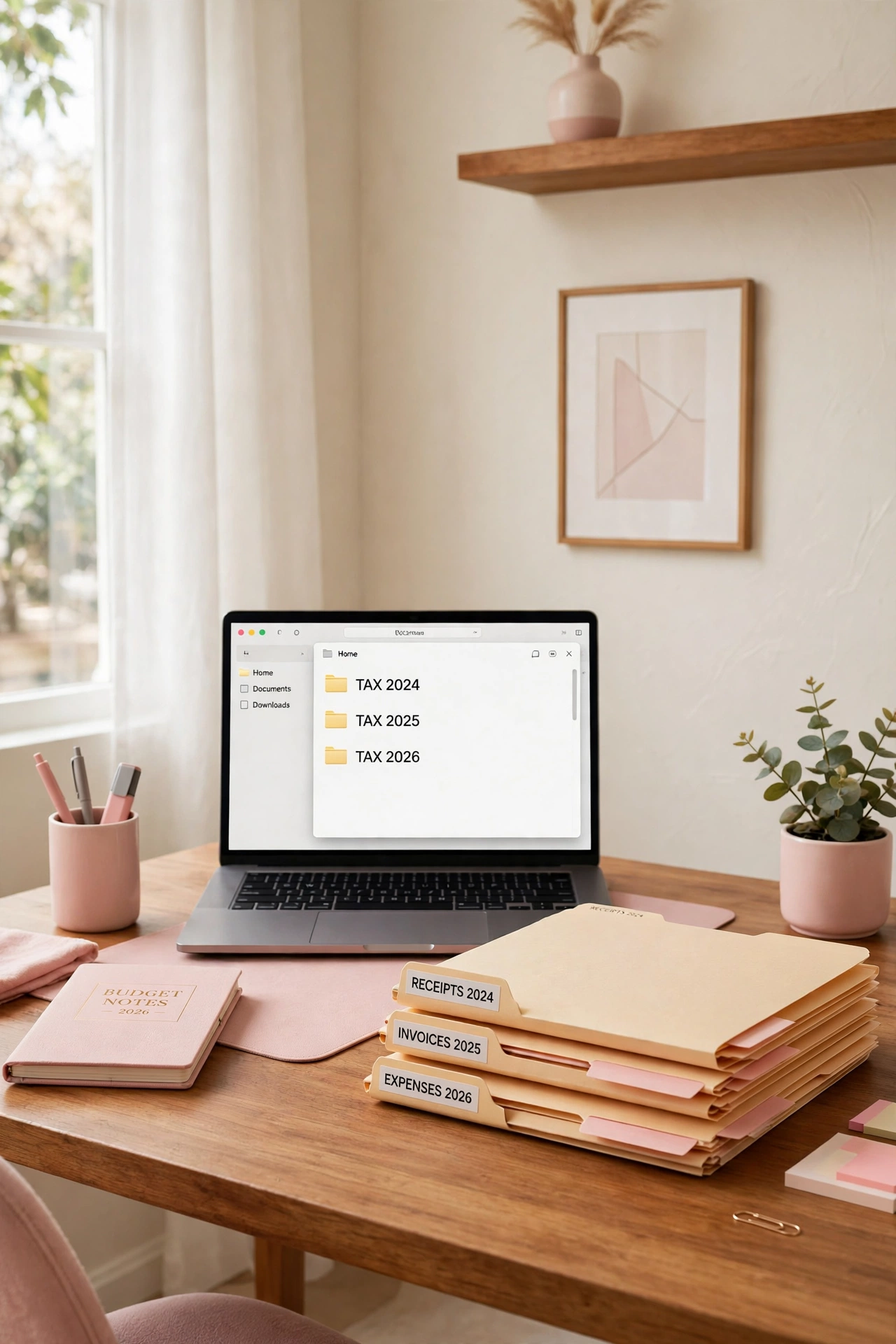
Medical records multiply quickly, with visit summaries, lab results, prescriptions, vaccination records, and insurance letters arriving from many providers. Give each family member a Medical folder with subfolders for visits, prescriptions, test results, vaccinations, and insurance. When a new provider asks for history, you can share the right subfolder without sharing unrelated records.
Name medical files with the date first, followed by the provider and the type of record, so a health timeline appears in order when you sort by name. Keep a one-page summary inside each Medical folder listing current medications, allergies, and emergency contacts, and update it after each major visit. A current summary saves time in urgent moments when details matter most.
9. Create a School Folder for Each Child
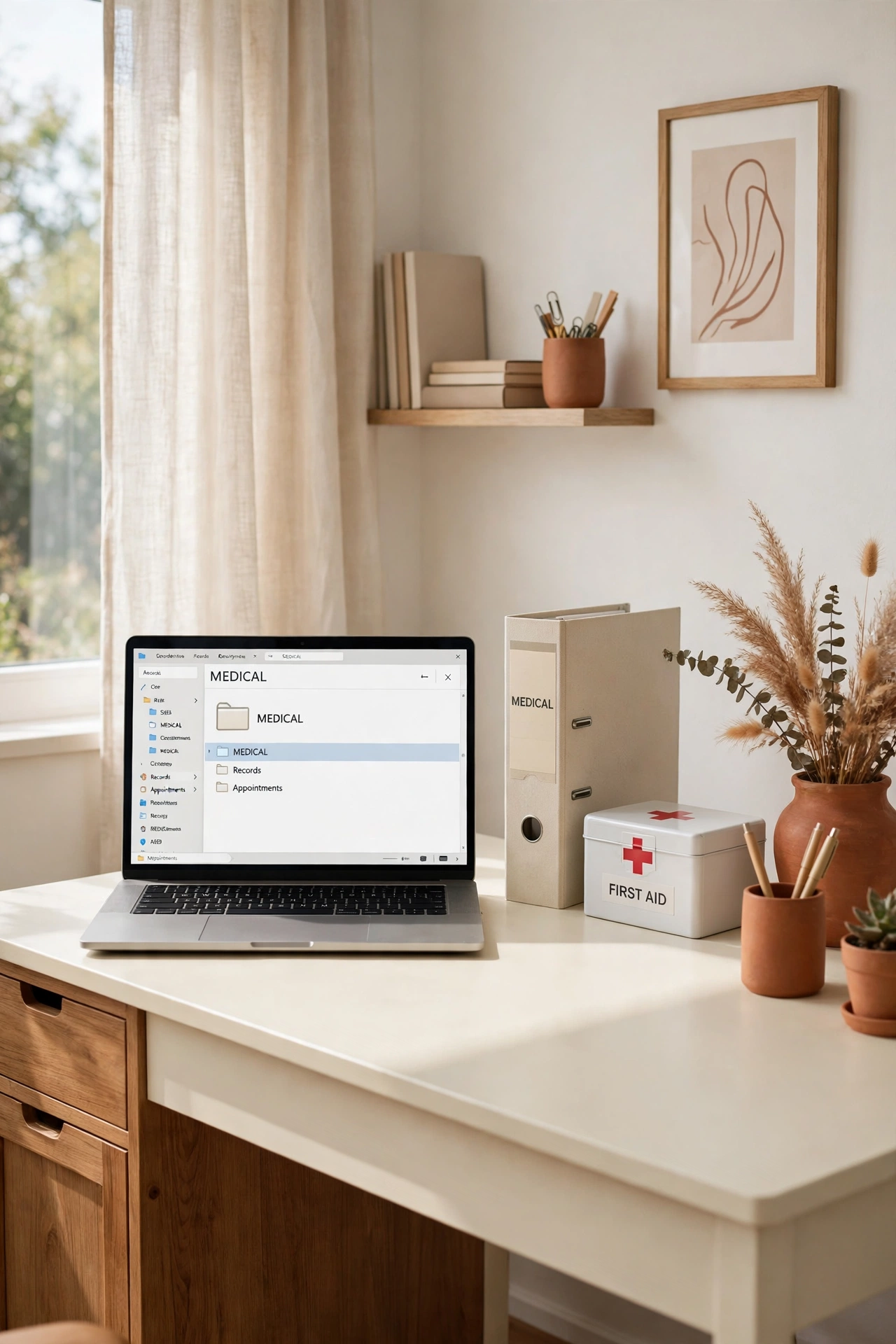
School papers arrive in a steady stream, from enrollment forms and report cards to permission slips and activity schedules. Create one School folder per child, with subfolders for each school year, and inside each year add folders for enrollment, grades, health forms, and activities. The structure grows cleanly as each child moves through school.
Scan or save school forms on the day they arrive, and name them with the date, the school name, and the purpose of the form. Keep current-year permission slips and schedules in a Current subfolder so daily needs stay separate from the long-term archive. For the paper side of the same habit, these school paper organization ideas pair well with a digital school folder system.
10. Store Home and Property Papers in One Place
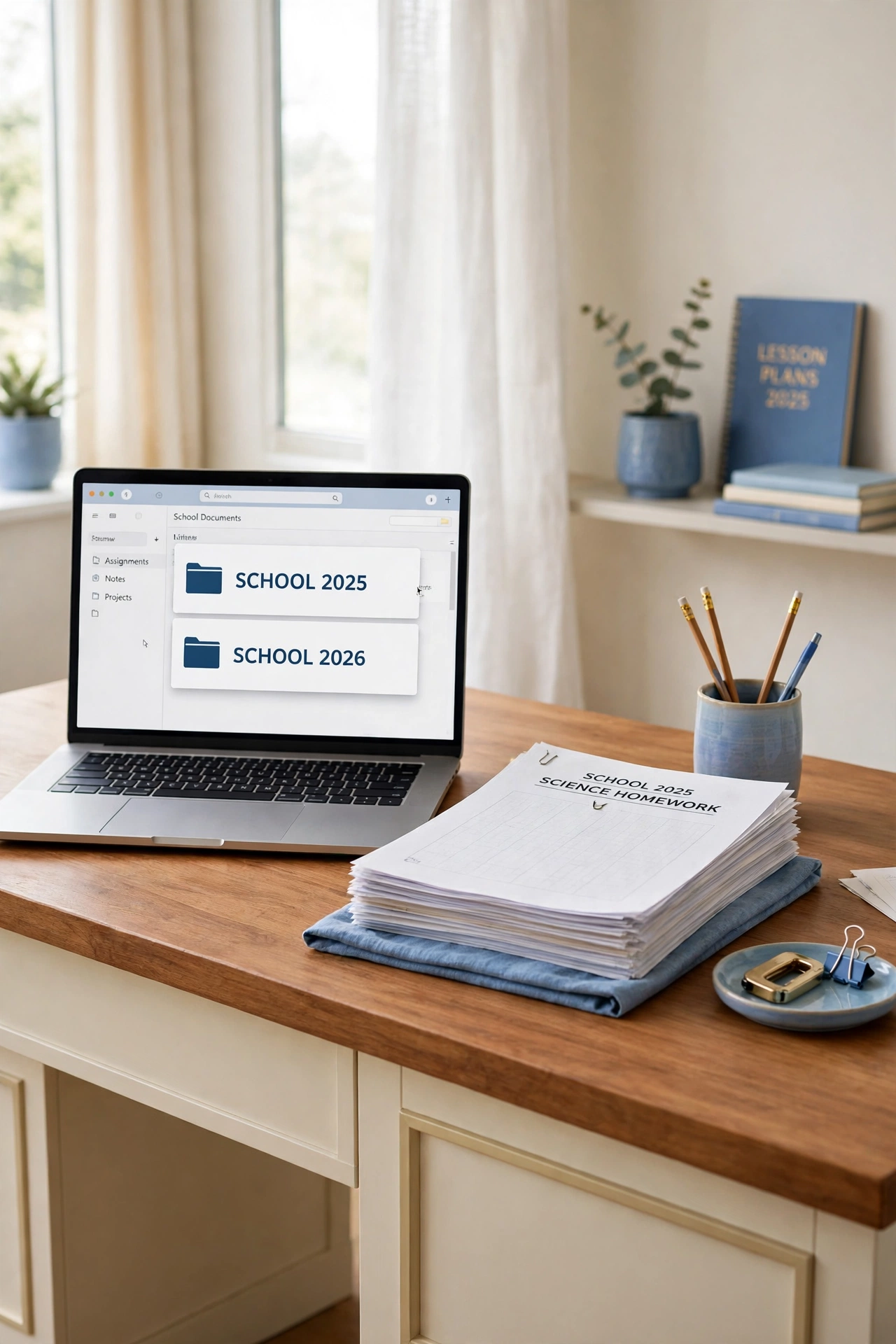
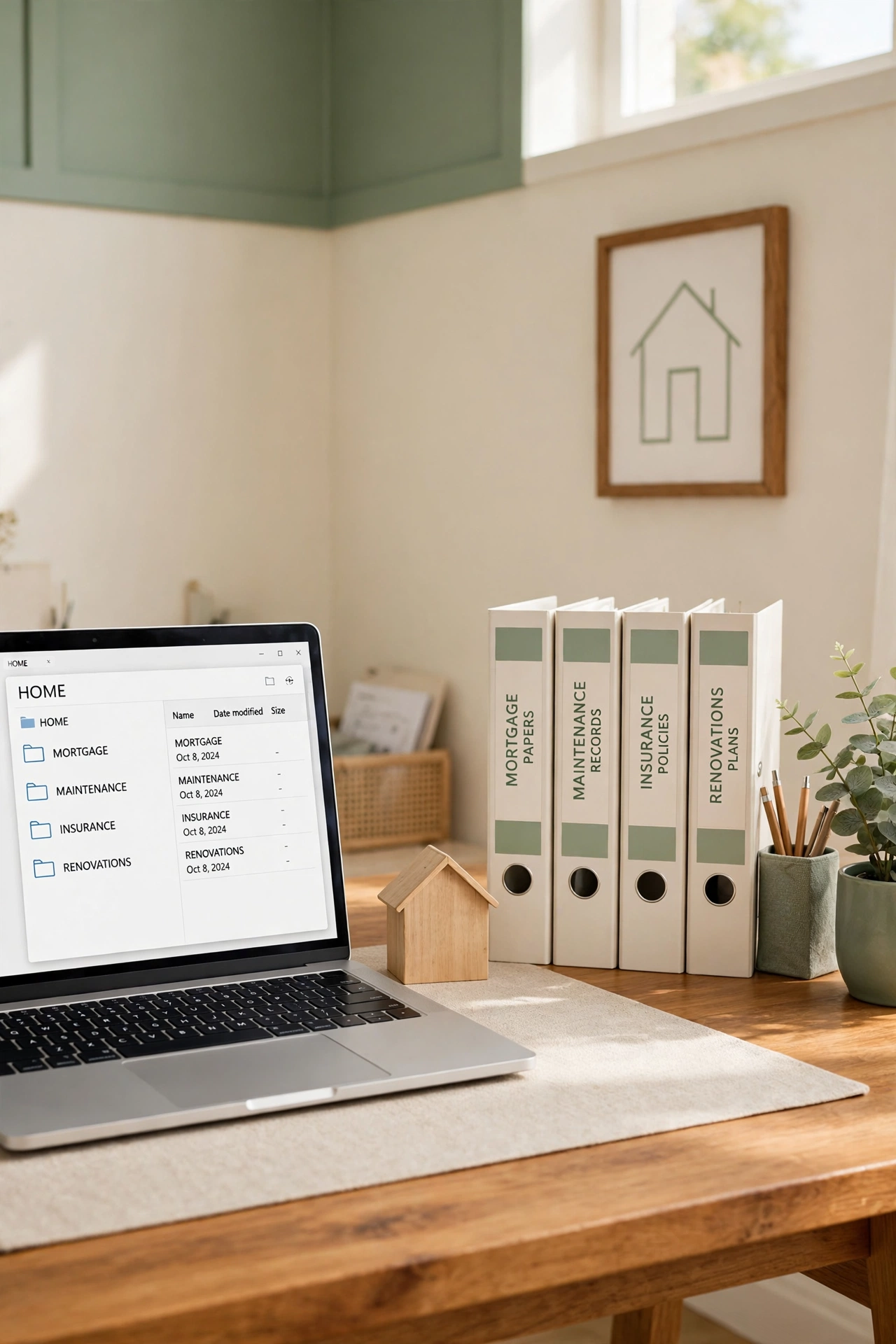
Home papers range from purchase documents and mortgage statements to renovation contracts, appliance manuals, and repair receipts. Gather them in a single Home folder with subfolders for purchase, mortgage, insurance, maintenance, renovations, and appliances. When a contractor asks for a model number or a past repair date, the answer lives in one predictable place.
Add a home inventory note inside the Home folder listing major appliances, purchase dates, and warranty end dates, and update it whenever something is replaced. Store large renovation files, such as permits and contracts, in their own dated subfolders so a single project never crowds the rest of the home records. A complete Home folder also makes moving, refinancing, or selling far less stressful.
11. Keep Vehicle Records in Their Own Folder
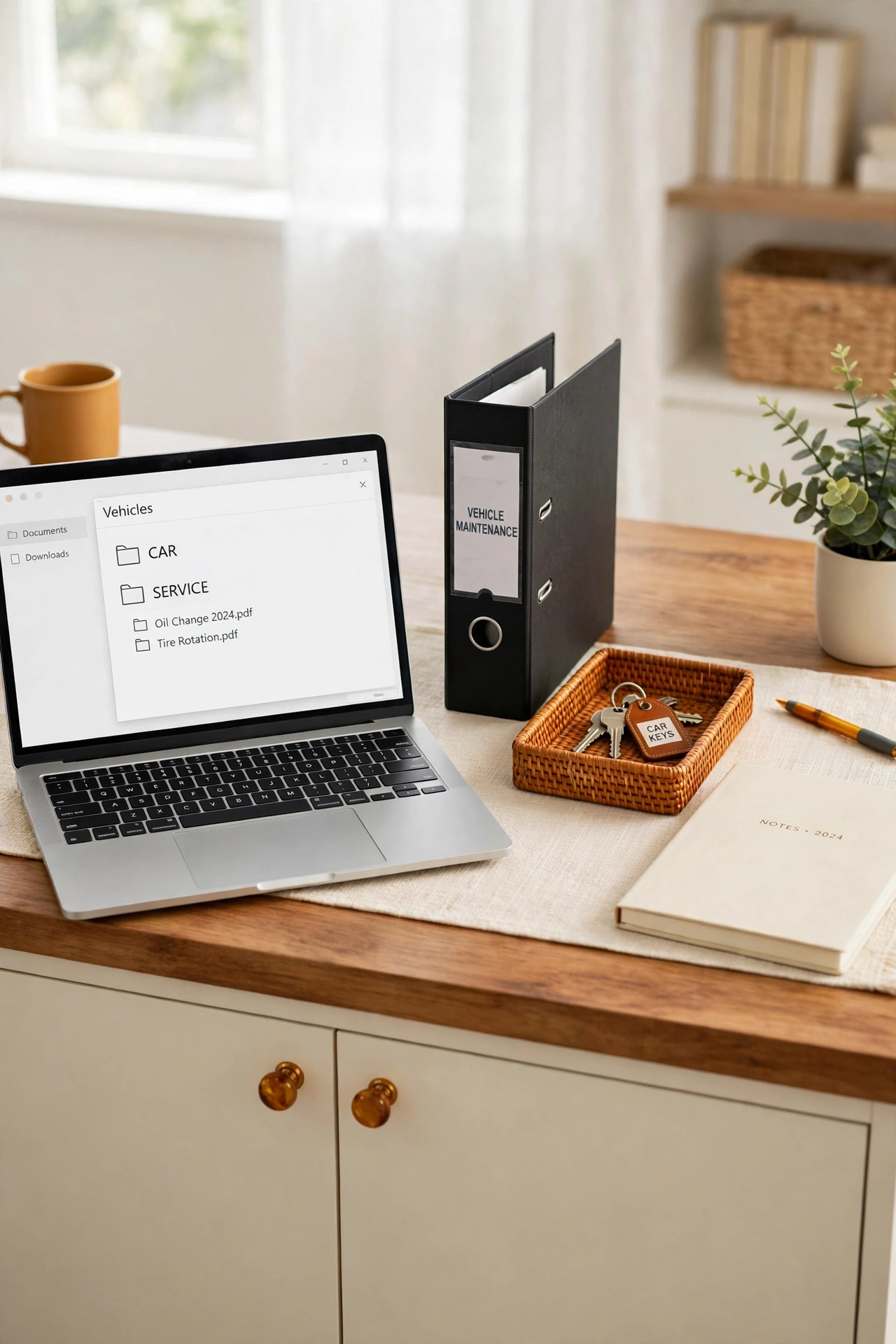
Each vehicle in a household generates registration papers, insurance cards, service records, and repair receipts that are easy to lose in a general folder. Create a Vehicles folder with one subfolder per vehicle, using the make and model in the folder name, and inside each add subfolders for registration, insurance, service, and repairs. The history of each vehicle stays complete and separate.
After every service visit, scan the receipt and save it with the date first and the type of service in the file name. Keep a simple service log inside each vehicle folder listing dates, mileage, and work performed, so patterns are easy to spot over time. When you sell a vehicle, the complete folder becomes a clear record you can share with the next owner.
12. Build a Receipts Folder Sorted by Month
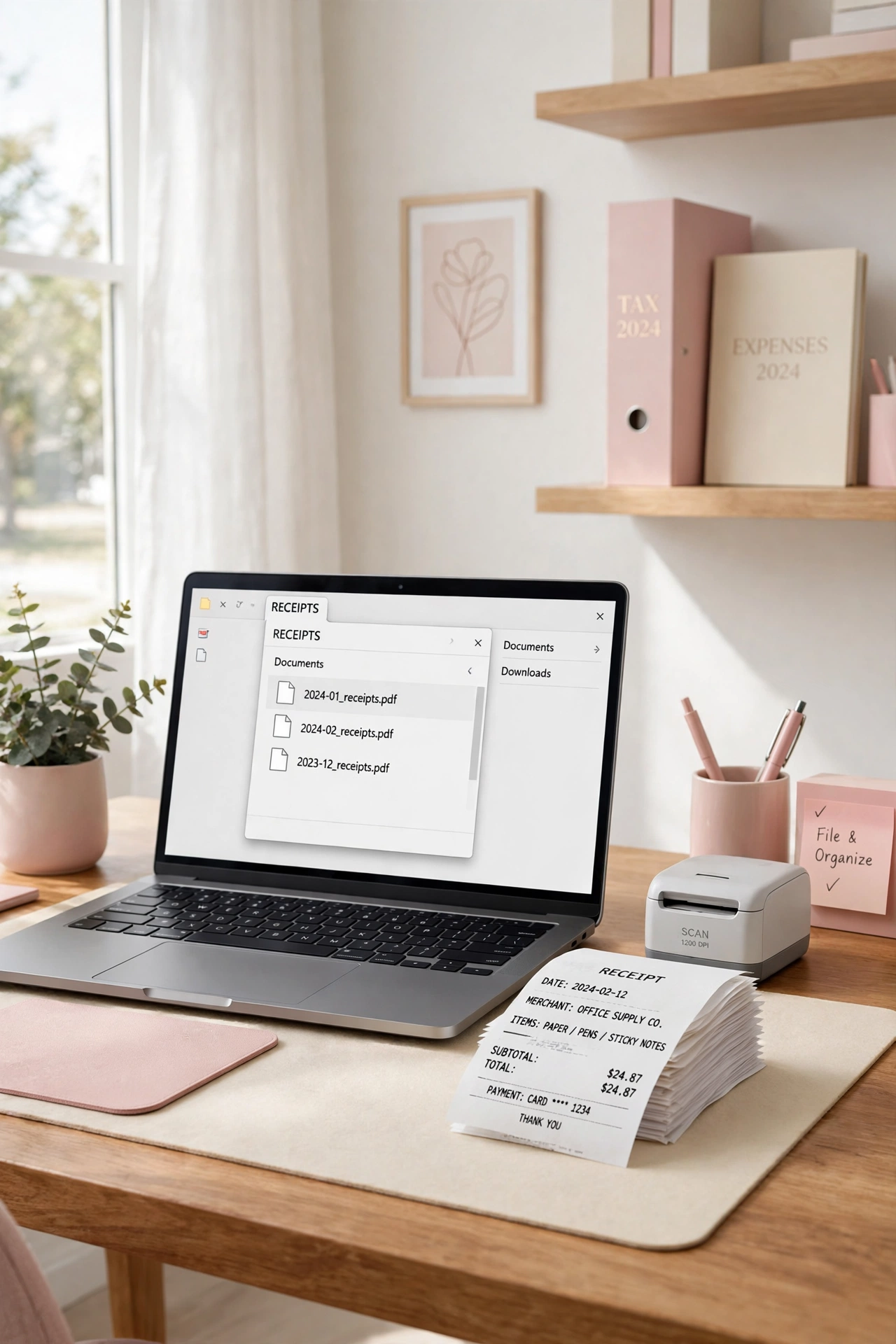
Receipts are small, numerous, and easy to lose, yet they matter for returns, warranties, taxes, and budgets. Create a Receipts folder with one subfolder per month, and save each receipt scan with the date, store name, and item in the file name. Monthly folders keep the volume manageable and make it simple to find a receipt from a specific week.
Make a habit of scanning receipts on the day of purchase, before paper fades or gets lost in a bag or pocket. For large purchases, save the receipt in both the Receipts folder and the matching Home or Vehicle folder by using a shortcut or a copy, so it is easy to find from either direction. These receipt organization ideas offer more ways to keep paper and digital receipts working together.
13. Create a Bills and Statements Folder by Provider
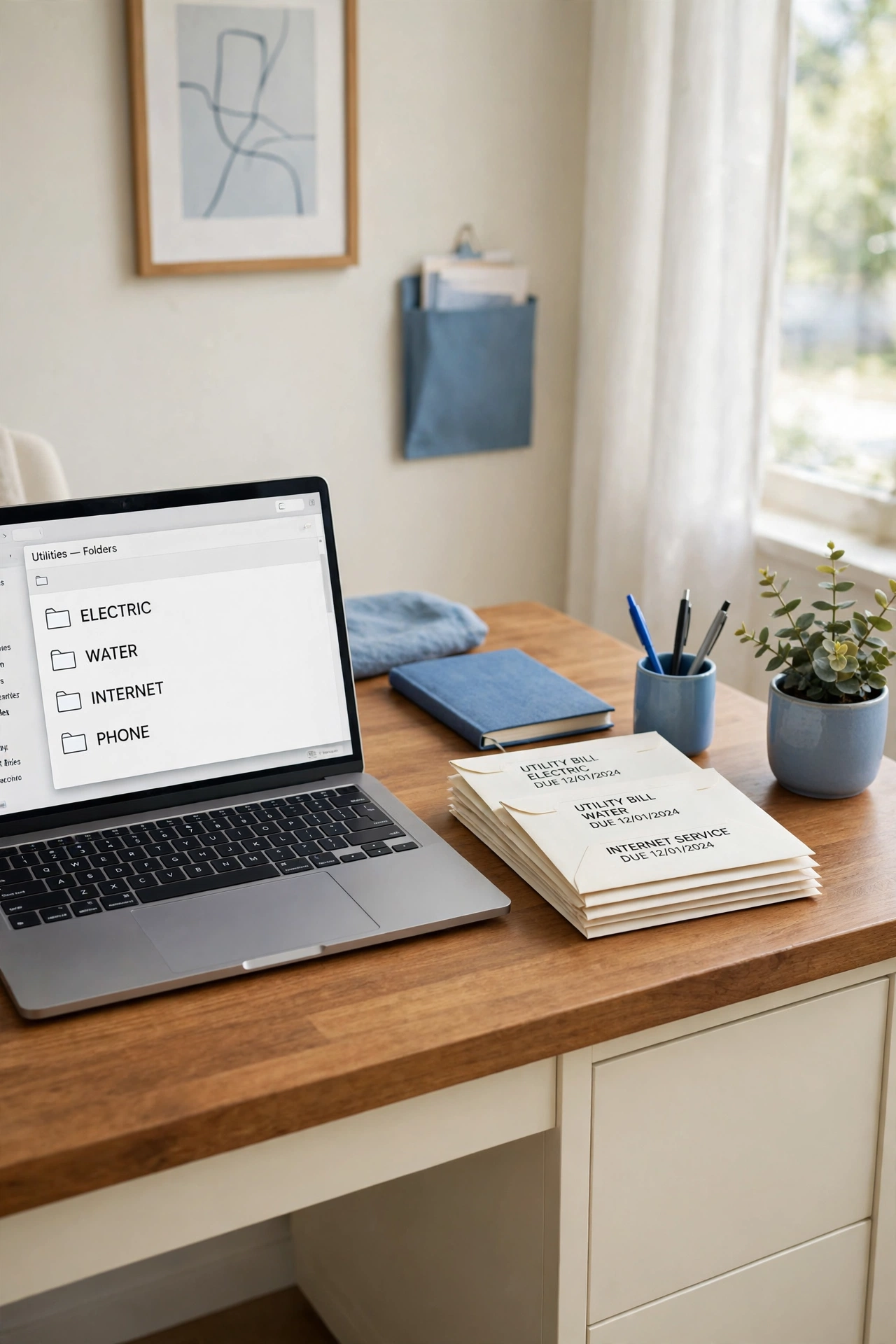
Monthly bills and statements arrive from many providers, and a single folder quickly becomes a long, mixed list. Create a Bills and Statements folder with one subfolder per provider, such as electric, water, internet, phone, and mortgage, and save each statement with the date first in the file name. Each provider history stays separate and easy to review.
When a billing question arises, open the provider folder and sort by name to see the full timeline in order. Keep only the current year plus the prior year in the active folder, and move older years to an archive folder once a year. A provider-based structure also makes it easy to spot a missing statement, because a gap in the date sequence stands out at a glance.
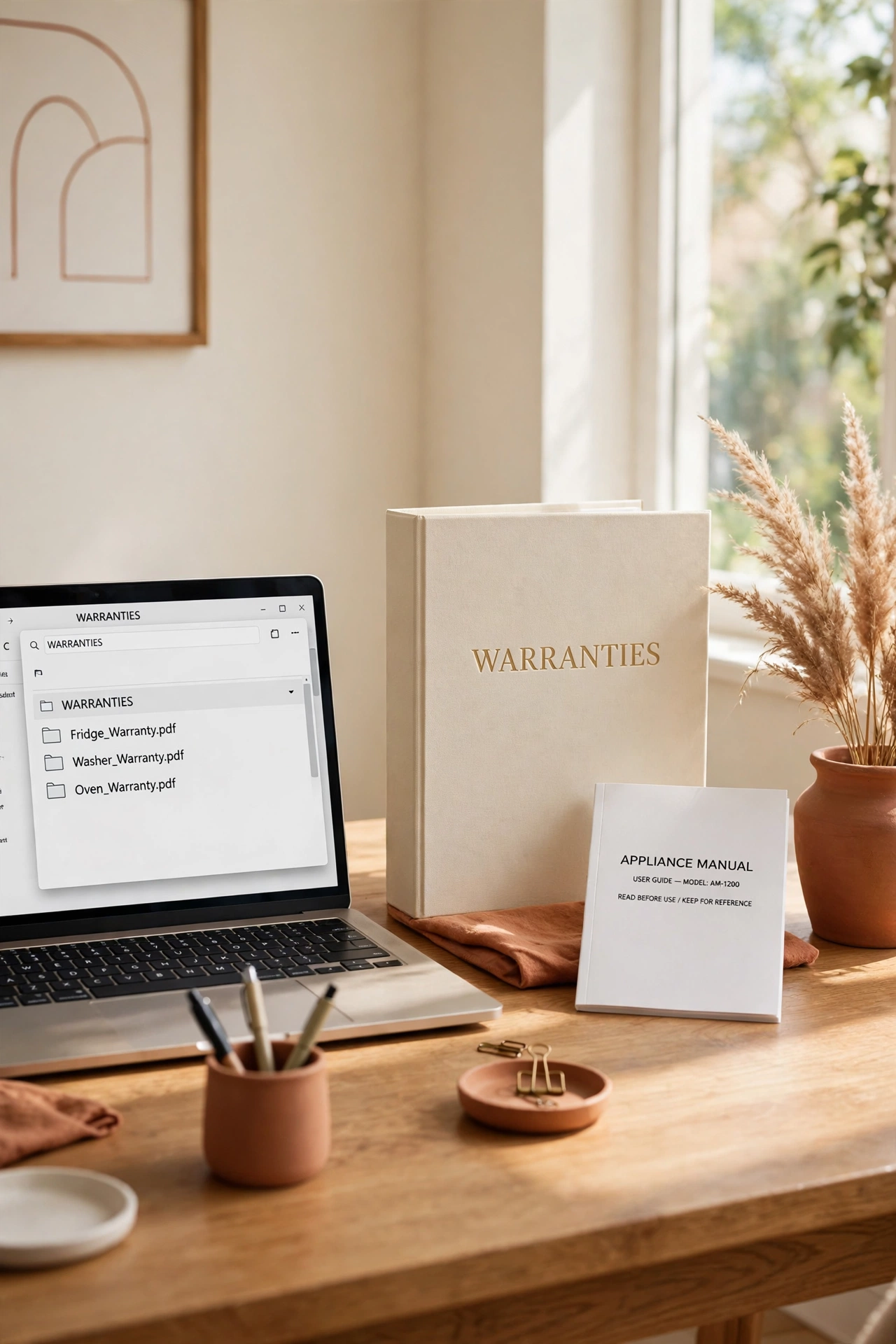
14. Keep Warranties and Manuals in One Digital Binder
Product manuals and warranty papers often live in kitchen drawers, appliance boxes, and email inboxes at the same time. Build one Warranties and Manuals folder with a subfolder for each room or each major product, and save the manual and warranty together in the same place. When an appliance stops working, the manual and the coverage dates are side by side.
Name each file with the product, the brand-free model description, and the purchase date, so the folder reads like a catalog of your home. Add a warranty tracker note listing each product, the purchase date, and the date coverage ends, and review it twice a year. A digital binder replaces a drawer full of booklets with a searchable shelf that never overflows.
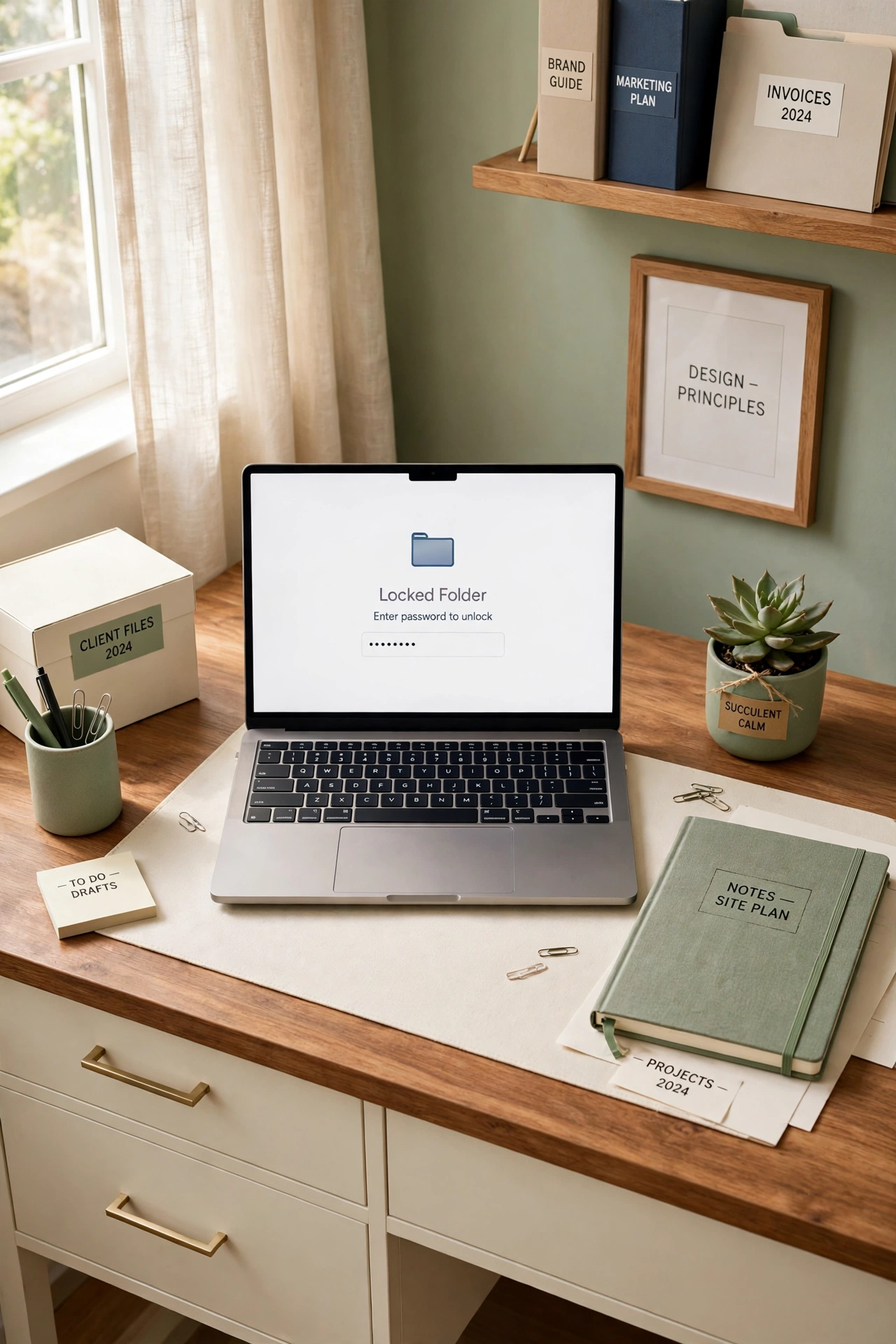
15. Make a Password-Protected Folder for Sensitive Files
Some family files need more protection than a standard folder offers, including tax returns, legal scans, and financial account documents. Create one clearly named secure folder and protect it with a strong password, encryption, or the locked-folder feature of your storage service. Store only the most sensitive files inside, so the extra step of unlocking feels worthwhile rather than annoying.
Keep the password in a trusted password manager, not in a note inside the same folder. Share access to the secure folder only with the adults who truly need it, and review that access once a year. A single protected folder is easier to guard than sensitive files scattered across many locations, and it gives you confidence when you store important records digitally.
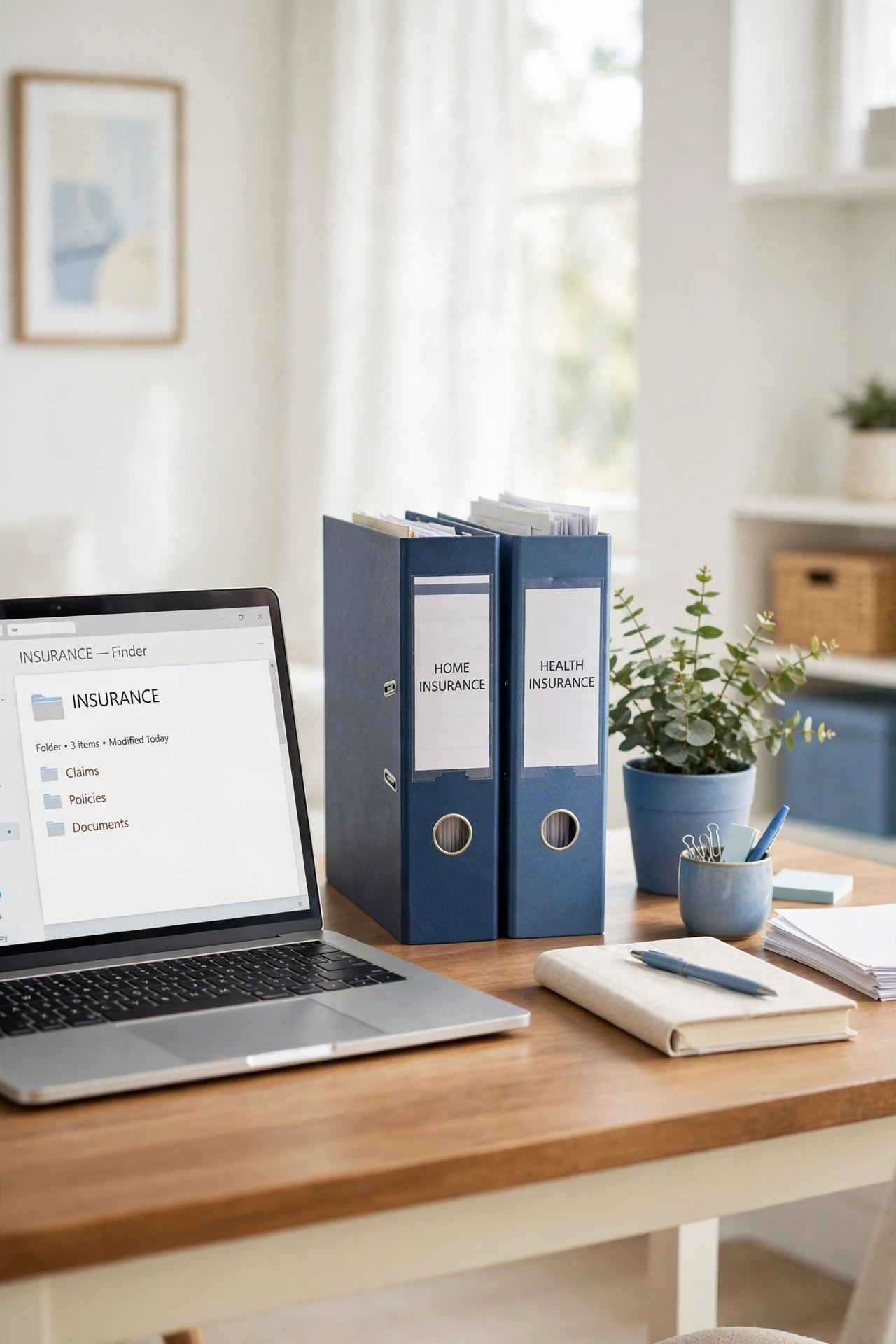
16. Store Insurance Policies in a Clearly Labeled Folder
Insurance touches nearly every part of household life, from health and home to vehicles and valuables. Create an Insurance folder with one subfolder per policy type, and inside each store the current policy, the declarations page, claim forms, and related letters. When you need to file a claim, the right policy is already gathered and ready.
Update the folder the same week a policy renews or changes, and move the old policy to a dated archive subfolder instead of deleting it. Add a summary note listing each policy, the provider, the policy number location, and the renewal date, so you can review coverage at a glance. A clear insurance folder turns a stressful claim moment into a calm, organized task.
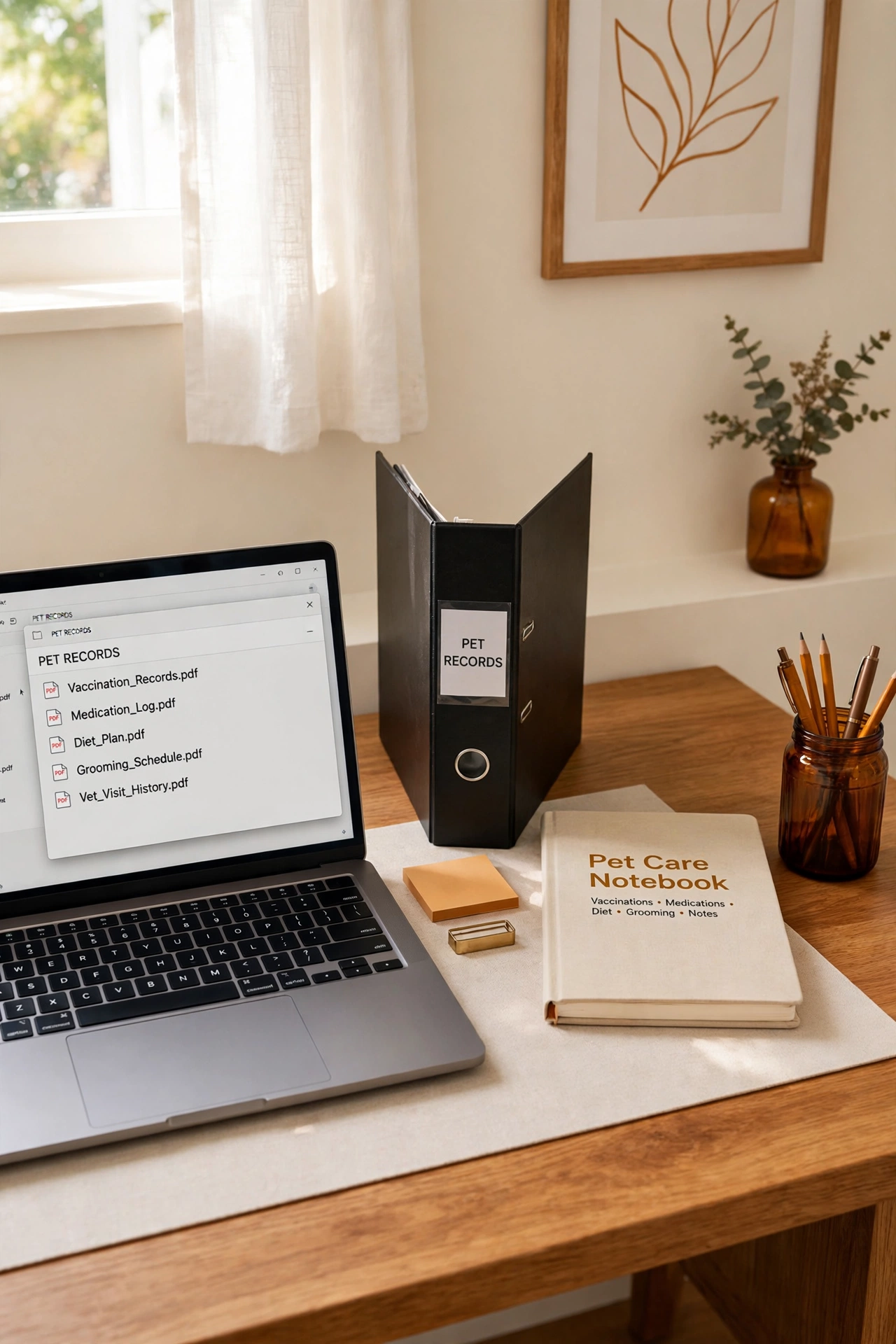
17. Create a Pet Records Folder for Vet and Care Papers
Pets generate their own paper trail, including vaccination records, vet visit summaries, medication instructions, and boarding or grooming notes. Create a Pets folder with one subfolder per pet, and inside each add folders for vet visits, vaccinations, medications, and care instructions. A sitter or a new vet can receive the right records without a search through family files.
Keep a care summary inside each pet folder listing feeding instructions, medications, allergies, and the vet contact details, and update it after every vet visit. Save vaccination records with the date first so the most recent proof is easy to find for boarding, travel, or licensing. A complete pet folder keeps care consistent, even when a different family member handles a vet visit.
18. Keep a Folder for Subscriptions and Memberships
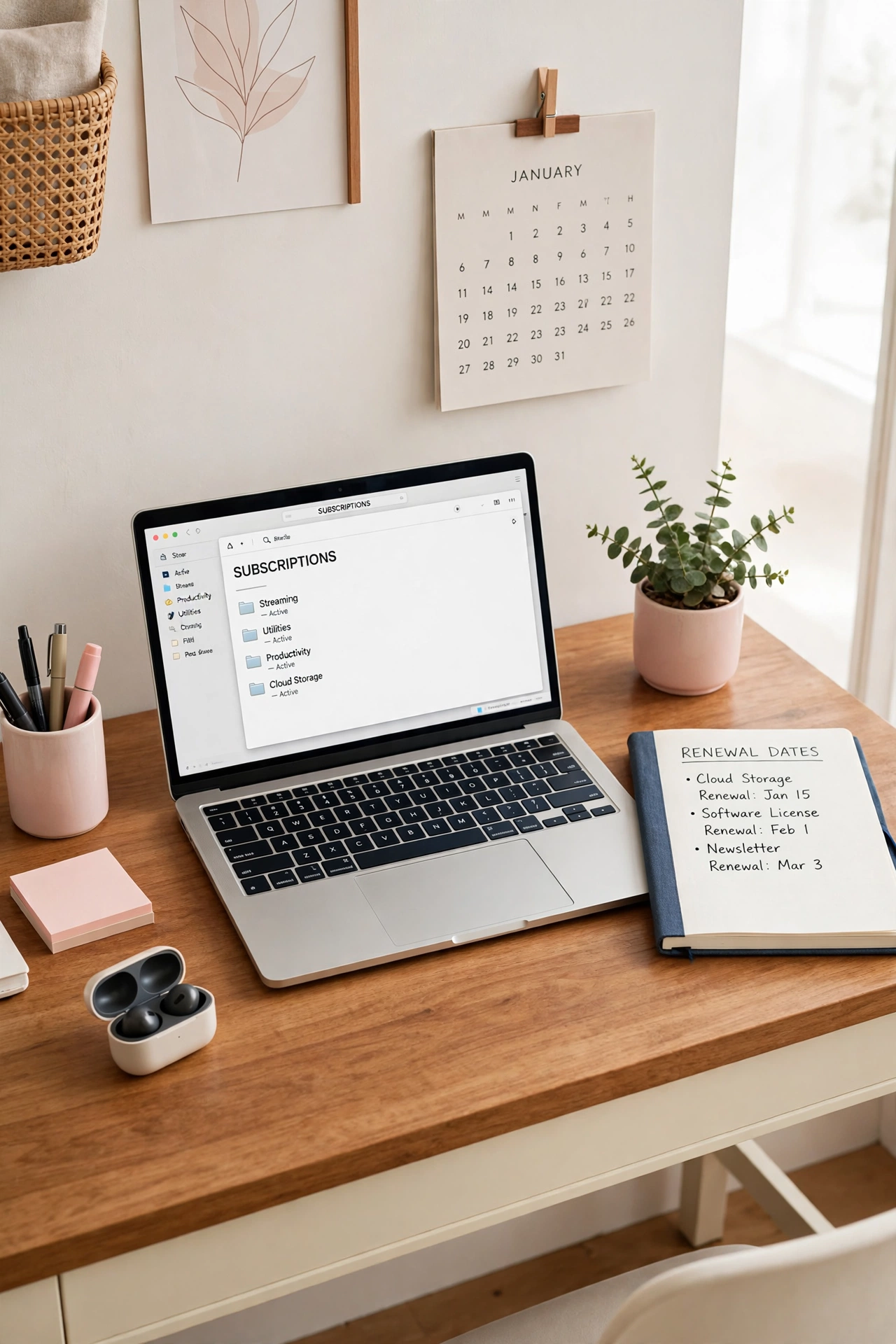
Subscriptions and memberships quietly multiply, from streaming services and magazines to gym memberships and club renewals. Create a Subscriptions folder with one file or subfolder per service, storing the signup confirmation, renewal date, cost, and cancellation terms. When a charge looks unfamiliar, the details are easy to check in one place.
Review the folder every three months and cancel services the family no longer uses, moving each cancelled record to an archive subfolder with the cancellation date. Keep a simple subscription list inside the folder with renewal dates sorted by month, so no renewal arrives as a surprise. These household subscription organization ideas can help you pair the digital list with a household review routine.
19. Save Travel Documents in a Ready-to-Share Folder
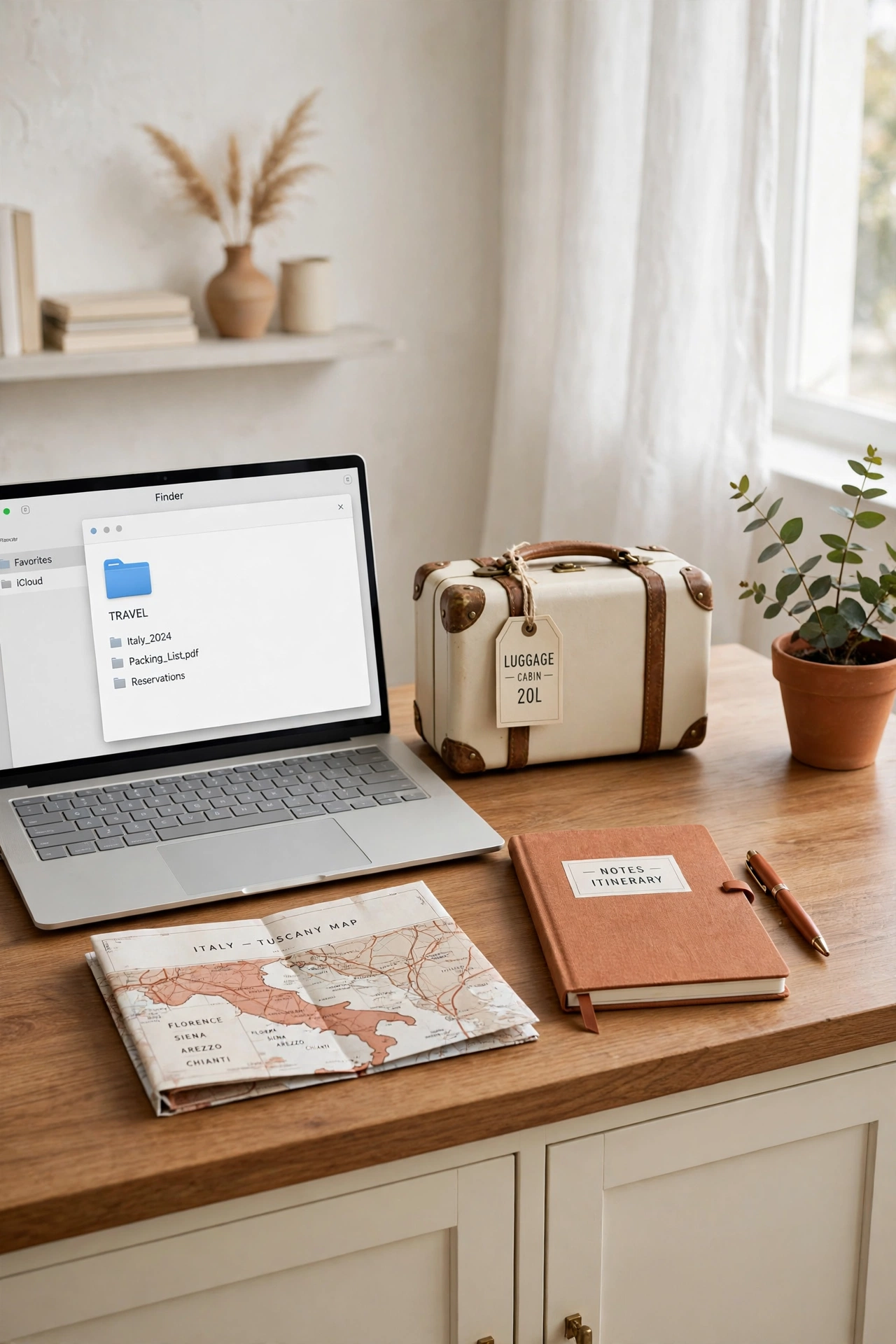
Travel planning creates a burst of documents, including bookings, itineraries, tickets, hotel confirmations, and identification copies. Create a Travel folder with one subfolder per trip, named with the date and destination, and save every booking inside the matching trip folder as soon as it arrives. The whole trip lives in one place, ready to open on any device.
Inside each trip folder, keep a one-page itinerary listing dates, confirmation numbers, addresses, and emergency contacts, and share a view-only copy with a trusted family member staying home. After the trip, move the folder to a Past Trips archive so active planning stays separate from completed journeys. A ready-to-share travel folder removes the last-minute search for a missing confirmation.
20. Build an Emergency Folder You Can Open Anywhere
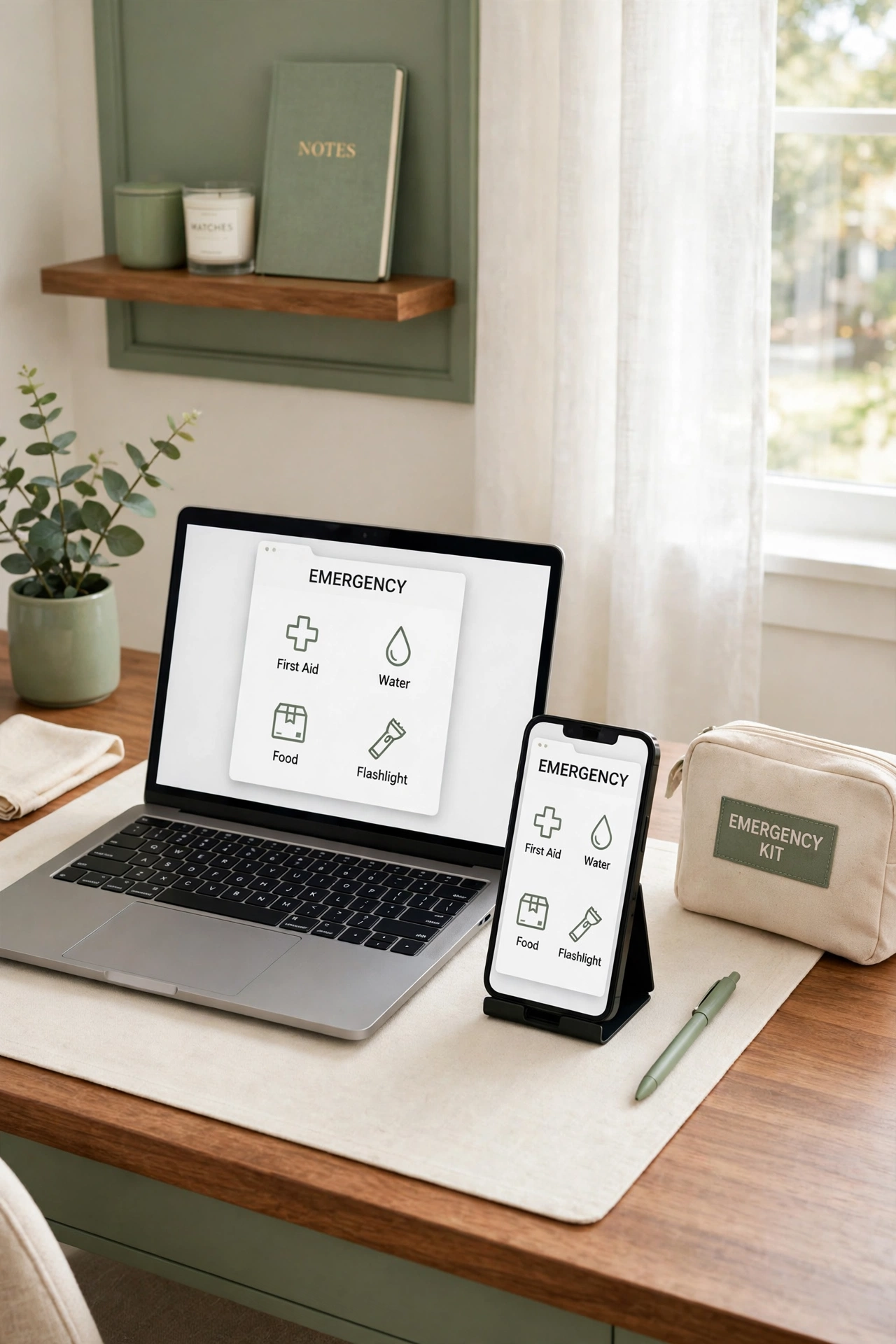
An emergency folder holds the copies you would need if you had to leave home quickly, including identification copies, insurance summaries, medical summaries, emergency contacts, and a list of account locations. Store this folder in cloud storage so it opens from any phone or computer, and keep a copy on a small encrypted drive stored away from home. In a crisis, access matters more than perfect organization.
Review the emergency folder twice a year, after daylight saving changes or at the start of spring and autumn, and replace any outdated contact or policy summary. Tell the adults in your household where the folder lives and how to open it, and practice opening it once so the steps feel familiar. A tested emergency folder is a quiet form of care for the whole family.
21. Use Color Labels to Mark Action Needed Files
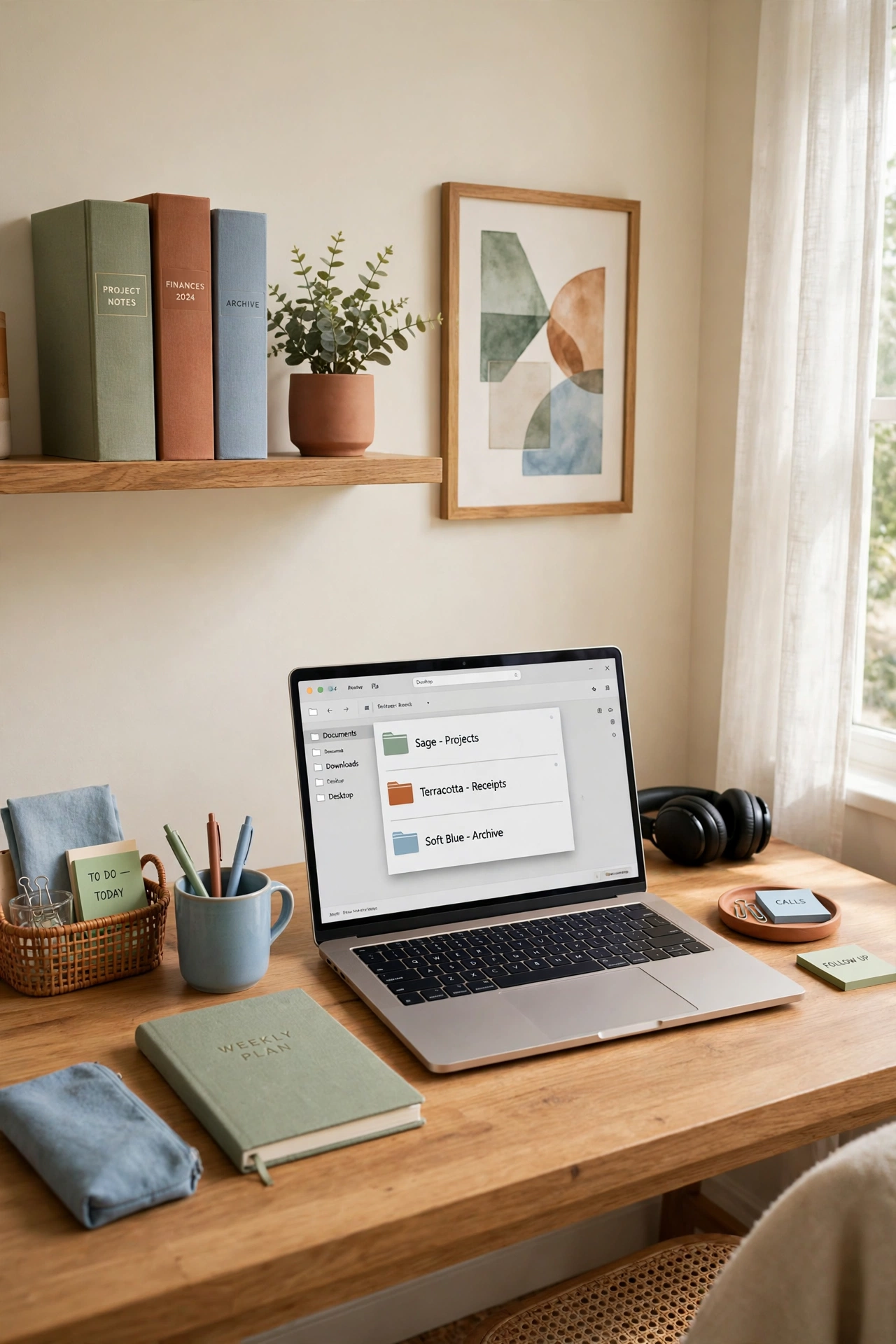
Color labels turn a plain file list into a visual to-do system. Assign one color to Action Needed, one to Waiting for Reply, and one to Filed and Complete, and apply the labels consistently across every folder. A red or amber label on a file instantly signals that it needs attention, without opening the file to check.
Keep the color system small, with no more than three or four labels, so the meaning stays easy to remember. Write the color key on a card near your desk and inside the master folder as a short note. When a task is finished, change the label to complete, so the active list stays short and honest.
22. Add Tags So One File Can Live in Two Places
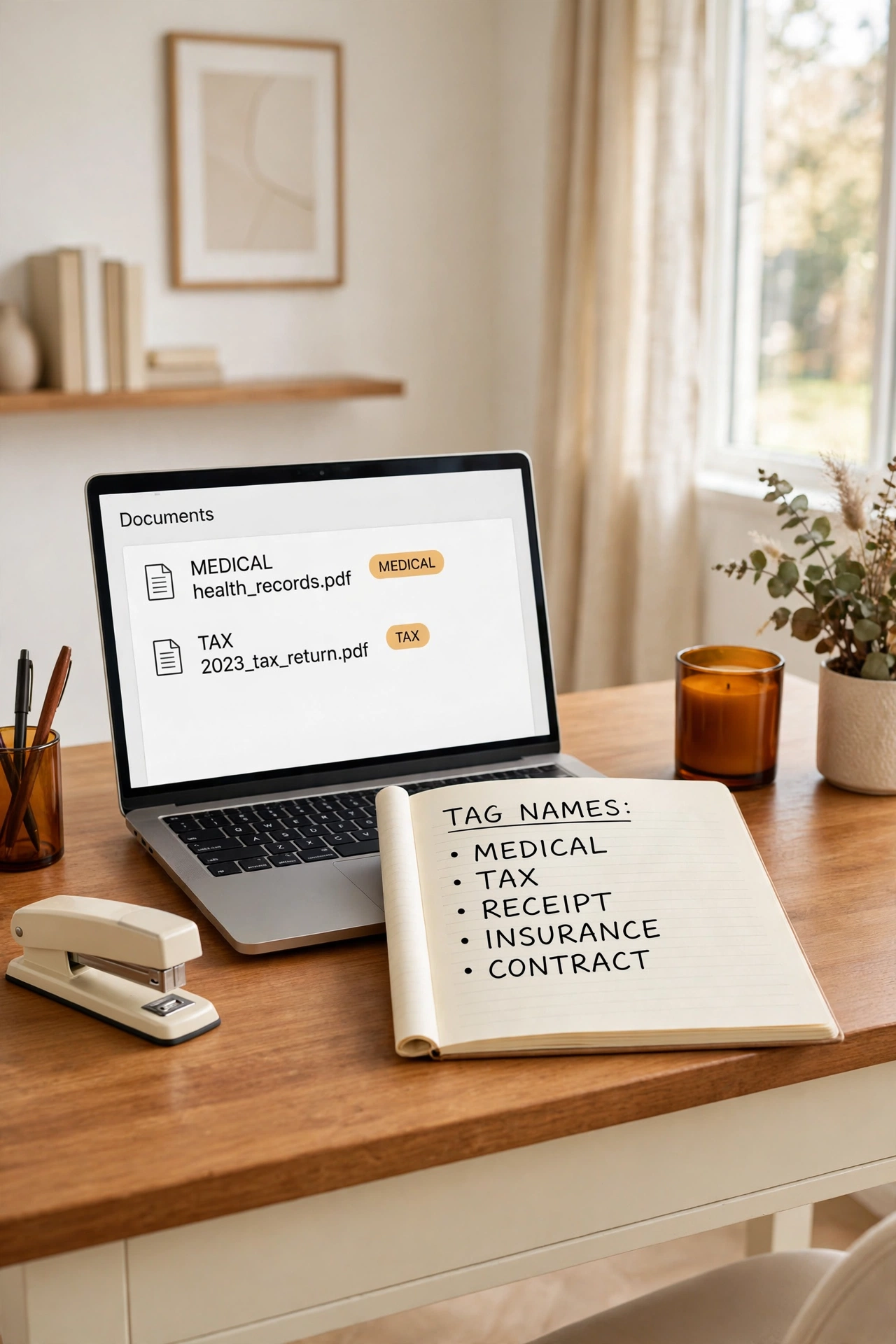
Some documents belong in two categories at once, such as a medical receipt that matters for both health records and taxes. Tags solve this problem by letting one file carry several labels without creating duplicate copies. Tag the file with both Medical and Tax, and it appears in searches for either topic while the file itself stays in one folder.
Build a short tag list before you start tagging, with no more than ten tags covering the main household categories. Use the same spelling for each tag every time, and review the tag list once a year to merge duplicates and remove tags you never use. A small, consistent tag list makes search powerful without turning filing into extra work.
23. Keep an Inbox Folder for New Scans and Downloads
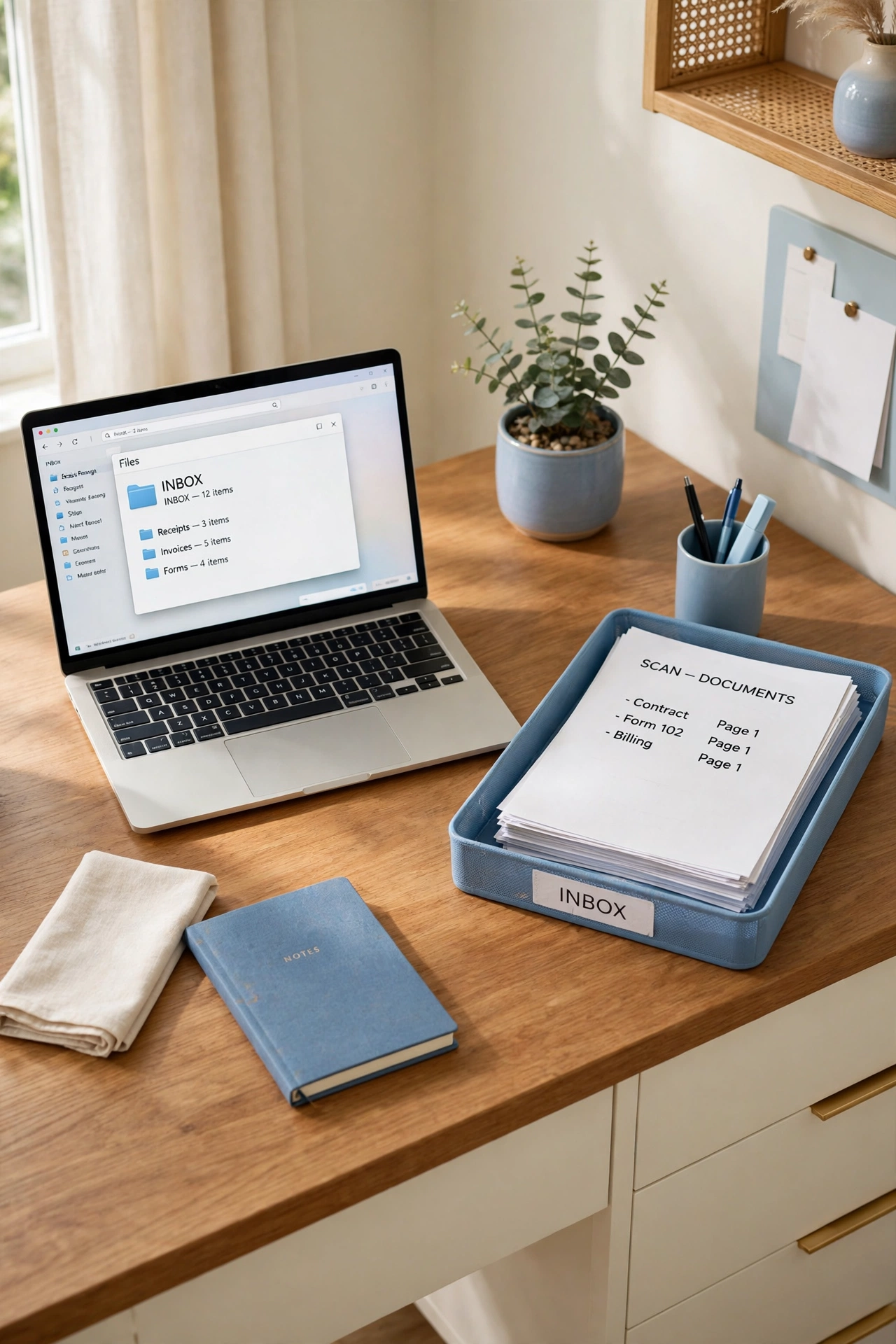
New files need a landing place, or they scatter across desktops, download folders, and email attachments. Create a single Inbox folder inside your master folder, and save every new scan, download, and attachment there first. The inbox holds new arrivals until you have a few minutes to name and file them properly.
Empty the inbox at least once a week, moving each file to its permanent folder with a clear name and date. If the inbox grows past twenty files, treat it as a signal to schedule a short filing session before the backlog grows further. A single inbox prevents the slow drift that turns a good system into a messy one.
24. Set a Weekly Ten-Minute Digital Filing Routine
A filing system survives on small, regular habits rather than rare, large cleanups. Choose one ten-minute slot each week, such as Sunday evening or Monday morning, to empty the inbox, rename new files, and file anything still waiting. A short, fixed routine keeps the system current with very little effort.
Pair the routine with an existing habit, such as after the weekly meal plan or before the week calendar review, so it becomes part of a rhythm you already keep. Keep a timer visible and stop at ten minutes, even if a few files remain, so the routine stays light and repeatable. Consistency matters far more than perfection in a family filing system.
25. Back Up Family Files to a Second Location Every Month
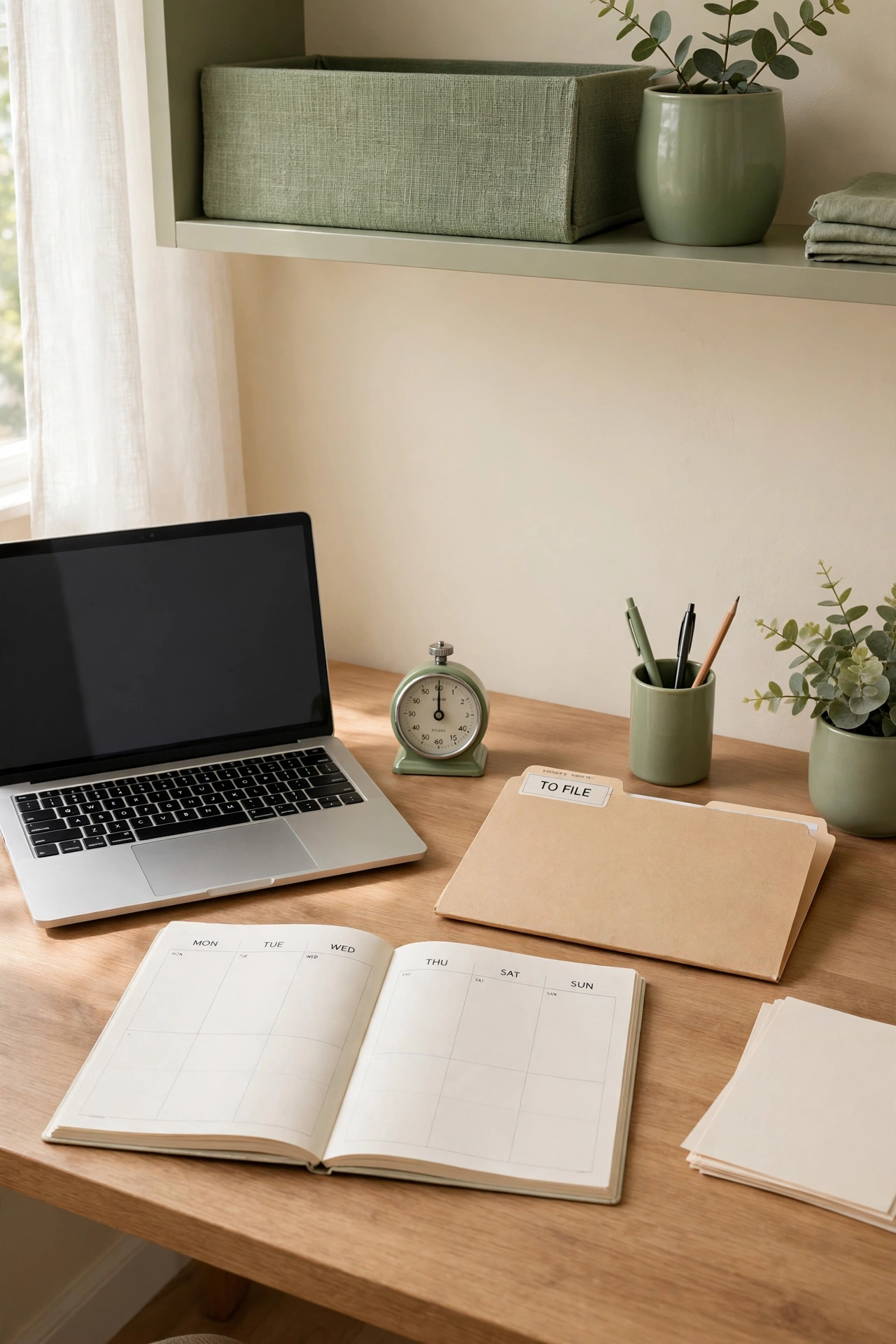
A single copy of a family file is a risk, because devices fail, accounts lock, and files get deleted by mistake. Keep at least two copies of your master folder in different locations, such as cloud storage plus an external drive stored in a different room. A monthly backup routine protects years of records with a few minutes of work.
Set a monthly reminder on the first day of the month, and after each backup, open two or three random files from the backup copy to confirm they open correctly. Label each backup with the date, and keep the two most recent backups before replacing the oldest one. A tested backup is the difference between a minor inconvenience and a major loss.
26. Use Cloud Storage So Family Files Follow You
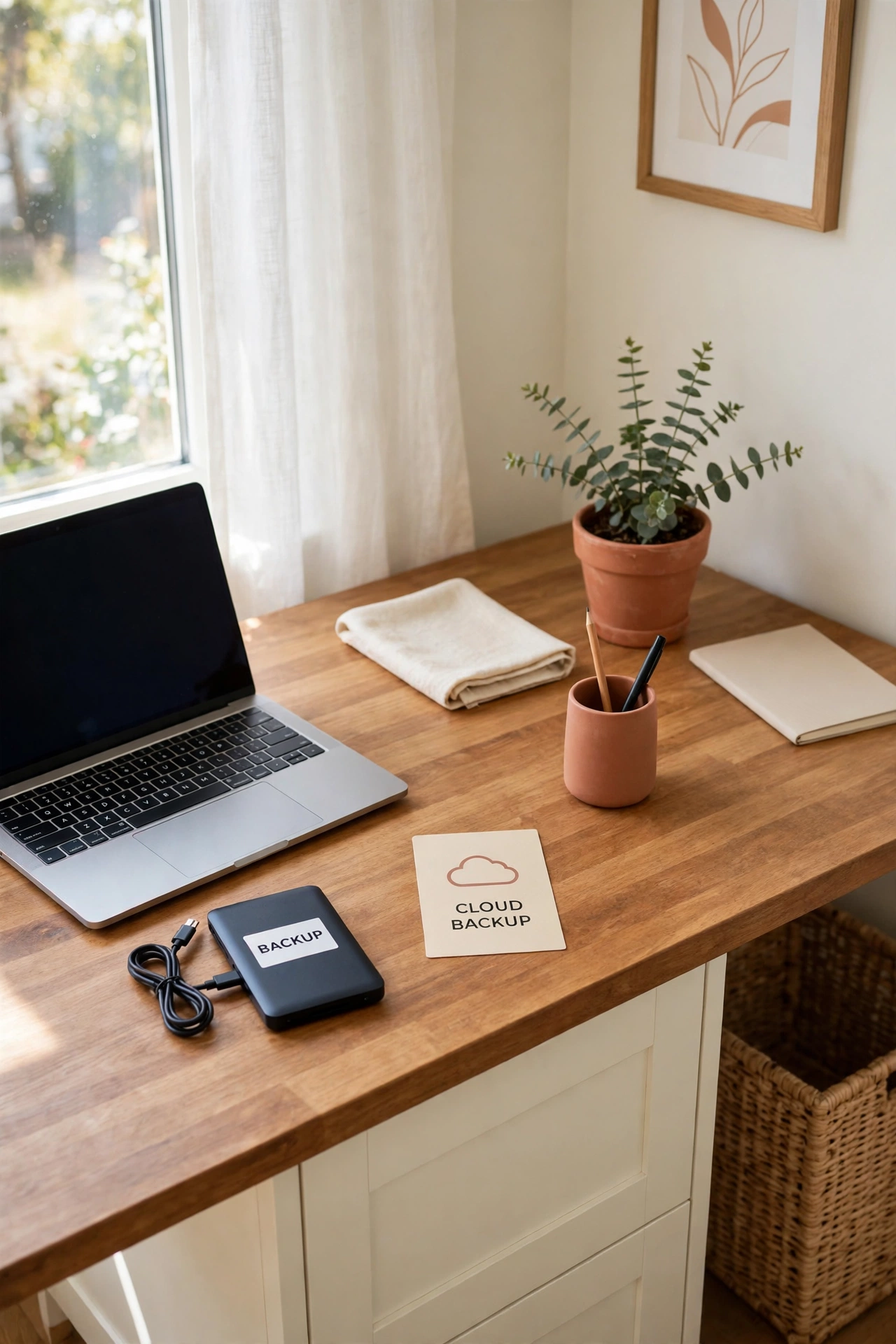
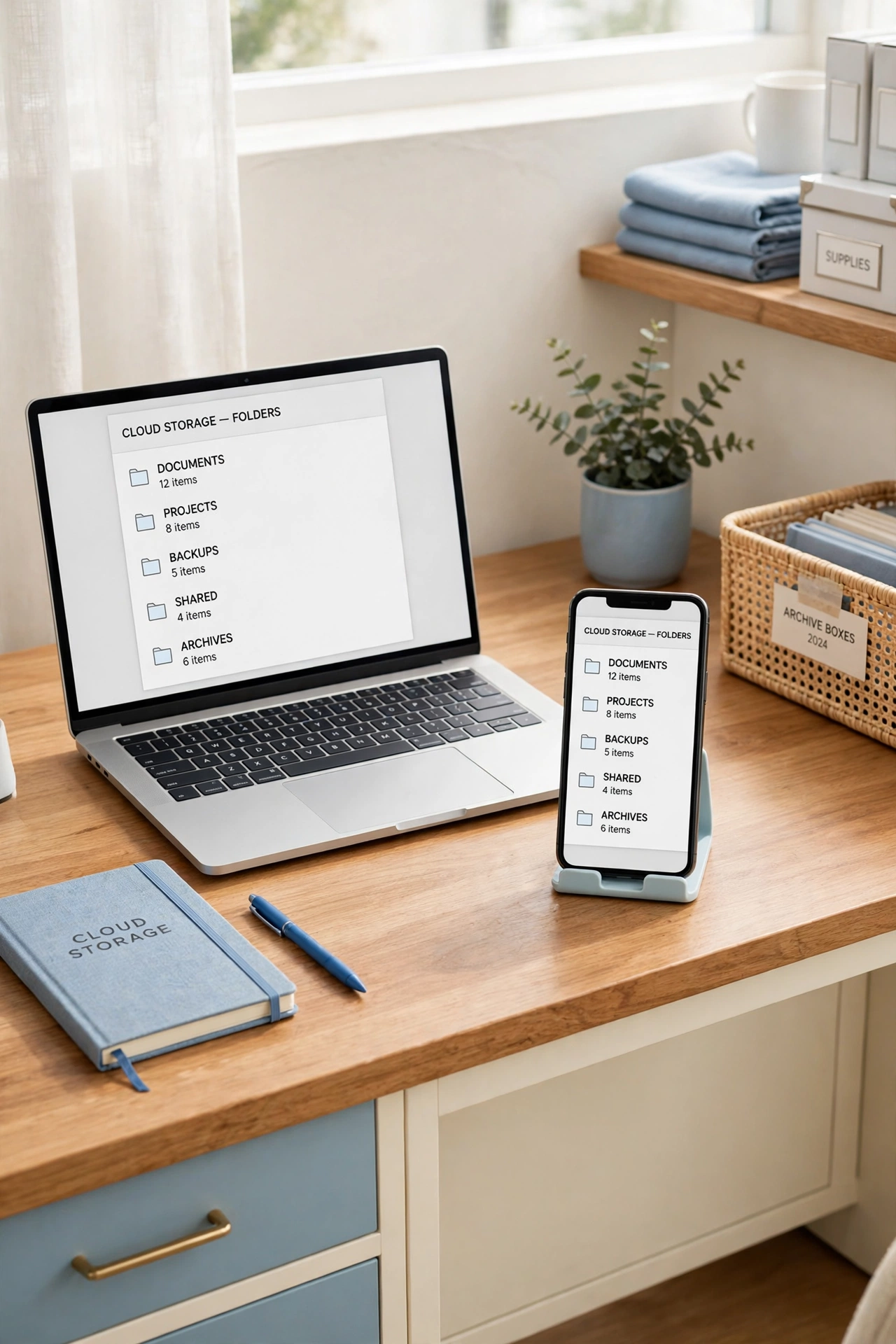
Cloud storage lets family files travel with you, from a home computer to a phone at a doctor office or a laptop while traveling. Store your master folder in one trusted cloud service, and let the service sync the same structure to every device you use. A file saved at home appears on your phone minutes later, ready when you need it.
Turn on two-step verification for the cloud account, and use a strong, unique password stored in a password manager. Keep an offline copy of the emergency folder as well, so a lost connection never blocks urgent access. Cloud storage works best as part of a backup plan, not as the only copy of important records.
27. Share One View-Only Folder With Trusted Family
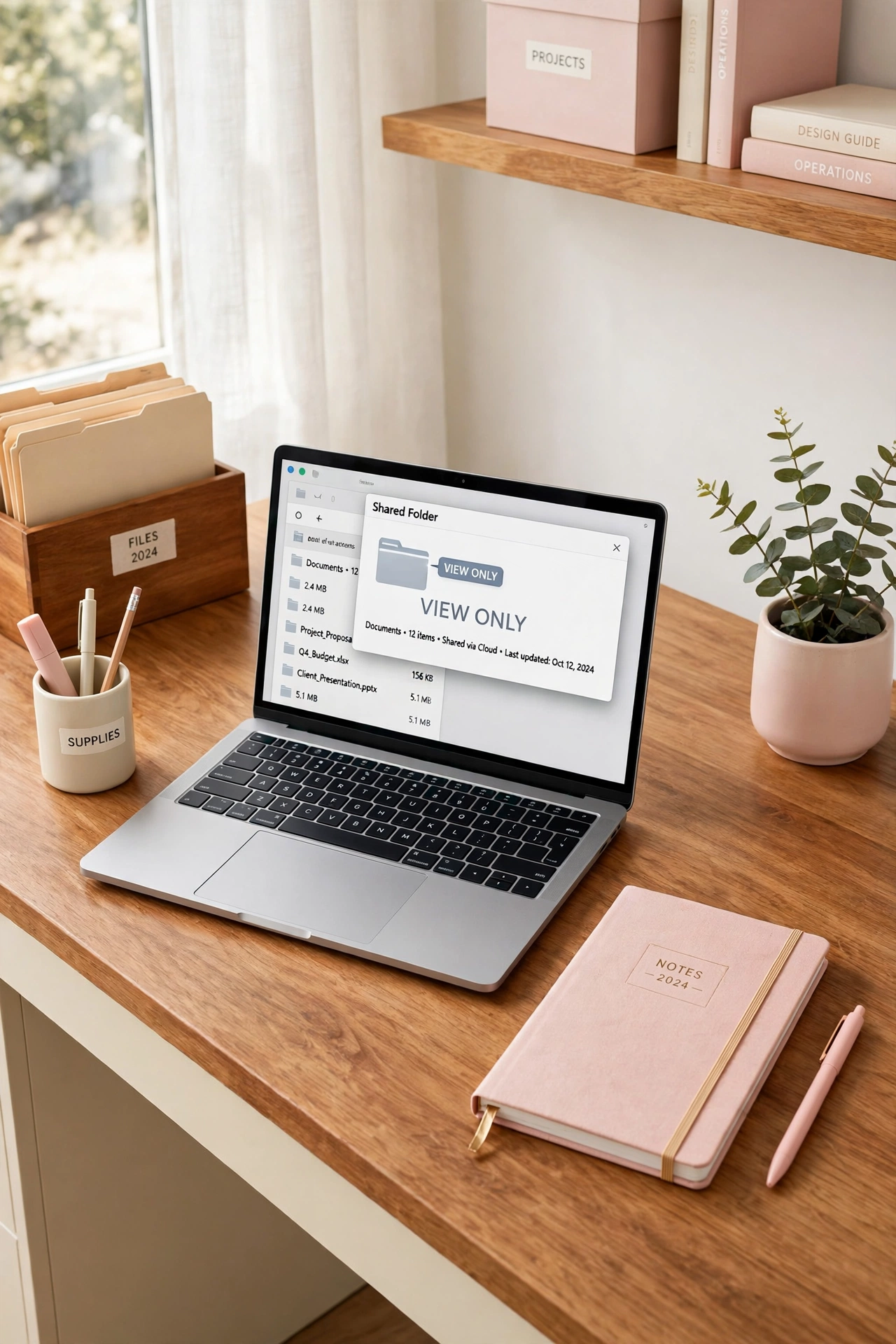
Sharing family files can help in emergencies, but full access to every record is rarely needed. Create one shared folder containing only the files a trusted family member might need, such as emergency contacts, medical summaries, and insurance summaries, and share it as view-only. The trusted person can read the files without editing, moving, or deleting them.
Review the shared folder every six months and remove files that are no longer needed, especially outdated medical or financial summaries. Never share the password-protected folder or the full master folder with anyone outside the household. A small, view-only shared folder balances helpfulness with privacy.
28. Keep an Archive Folder for Closed Years and Old Accounts
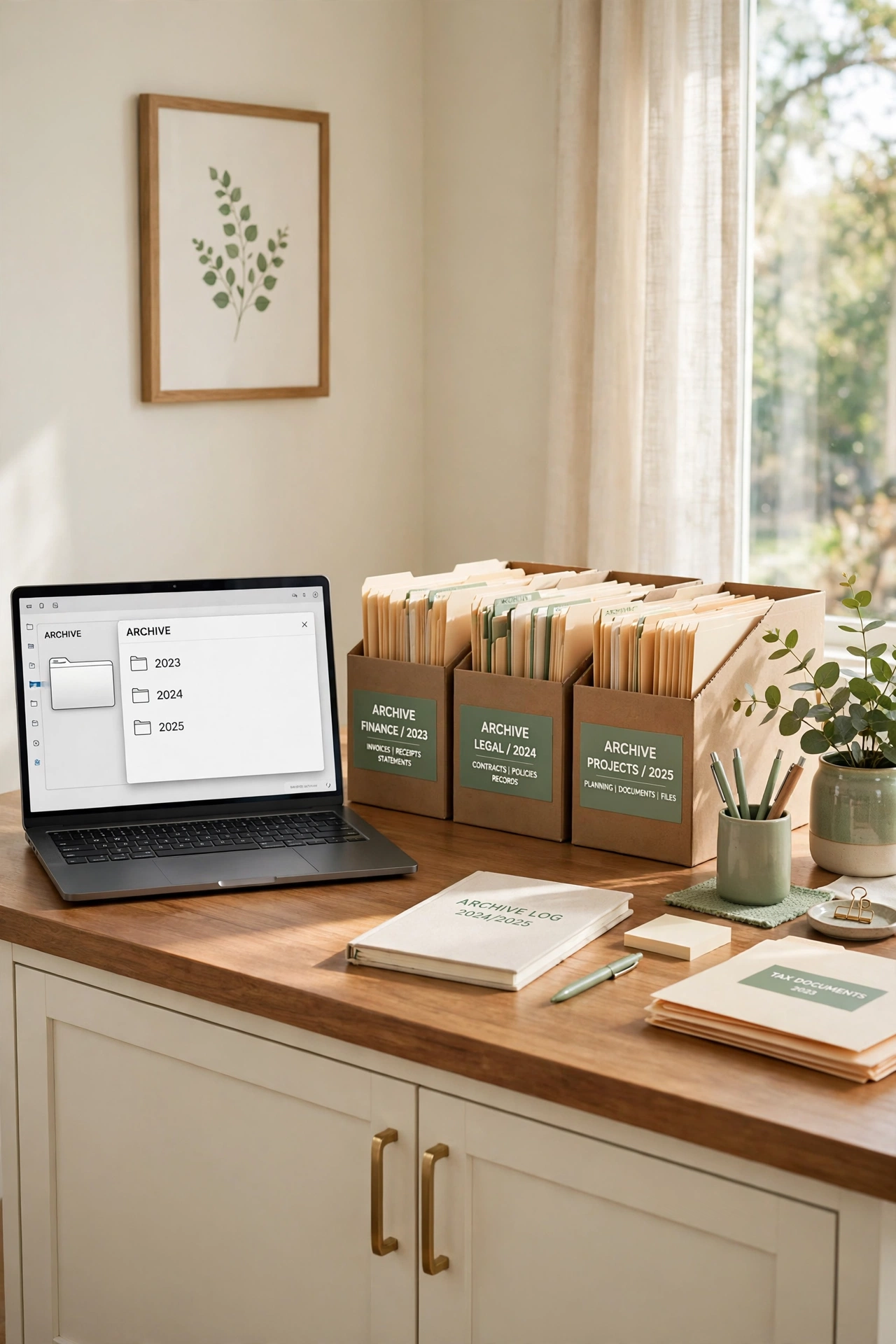
Active folders stay useful when old material moves out of the way. Create an Archive folder inside the master folder, with subfolders by year, and move closed tax years, old statements, cancelled accounts, and completed projects there once a year. The active folders stay short, while the full history remains searchable in the archive.
Label each archive subfolder with the year and a short description, and keep a simple index note listing what moved and when. Before archiving, confirm that each file opens correctly and carries a clear date in its name. A yearly archive habit prevents the slow buildup that makes even a good system feel crowded.
29. Create a Quick Reference Sheet Inside the Master Folder
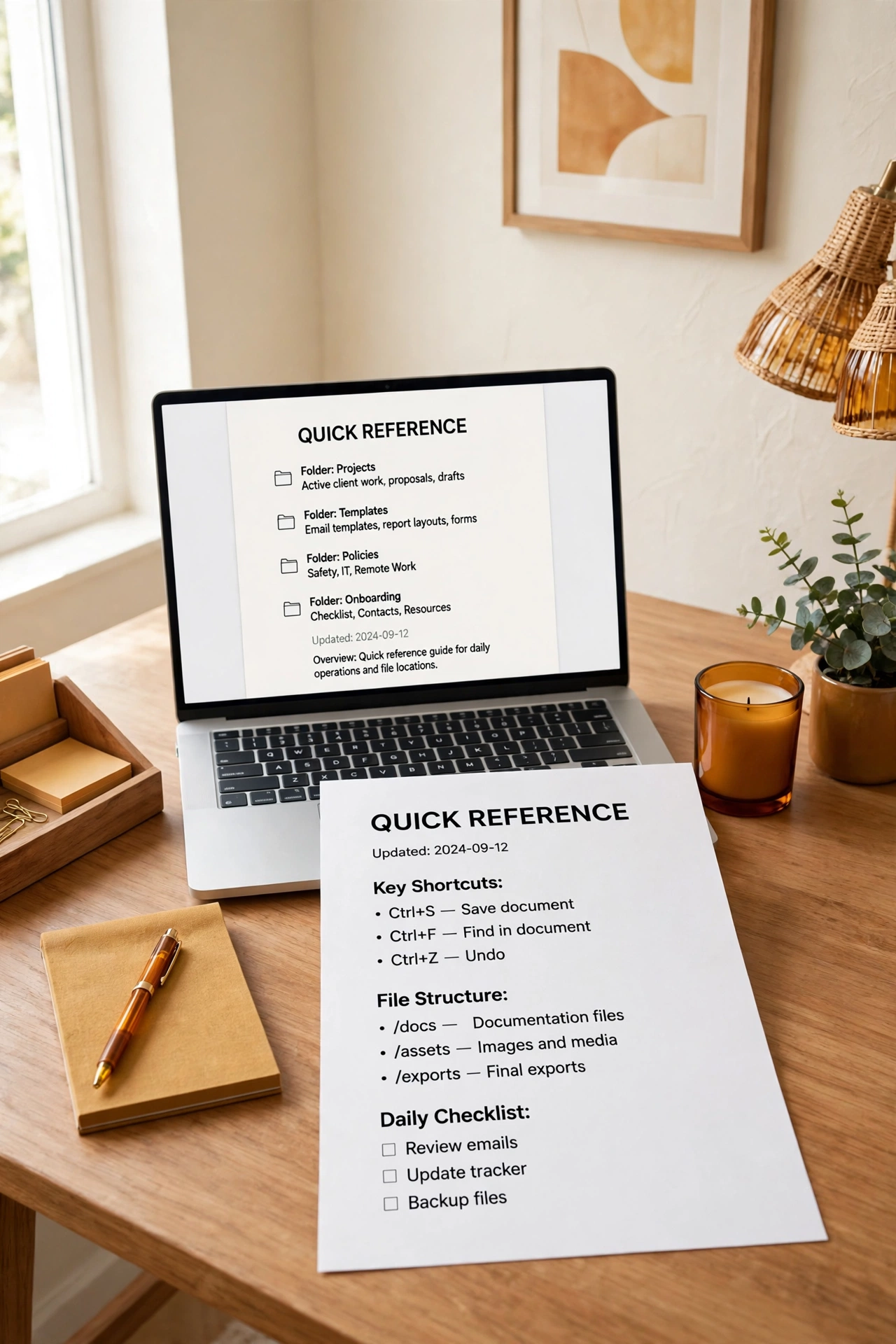
A quick reference sheet is a one-page guide that explains your filing system to anyone who opens the master folder. List the top-level folders, the naming rule, the color label key, and the location of the emergency folder and the backup drive. A new family member, a helper, or your future self can understand the system in minutes.
Keep the sheet short, plain, and current, and update it whenever you add a folder or change a rule. Store the sheet at the top of the master folder with a name that sorts first, such as 00-Quick-Reference, so it is the first file anyone sees. A clear guide turns a personal system into a household system.
30. Review and Delete Duplicates Every Season
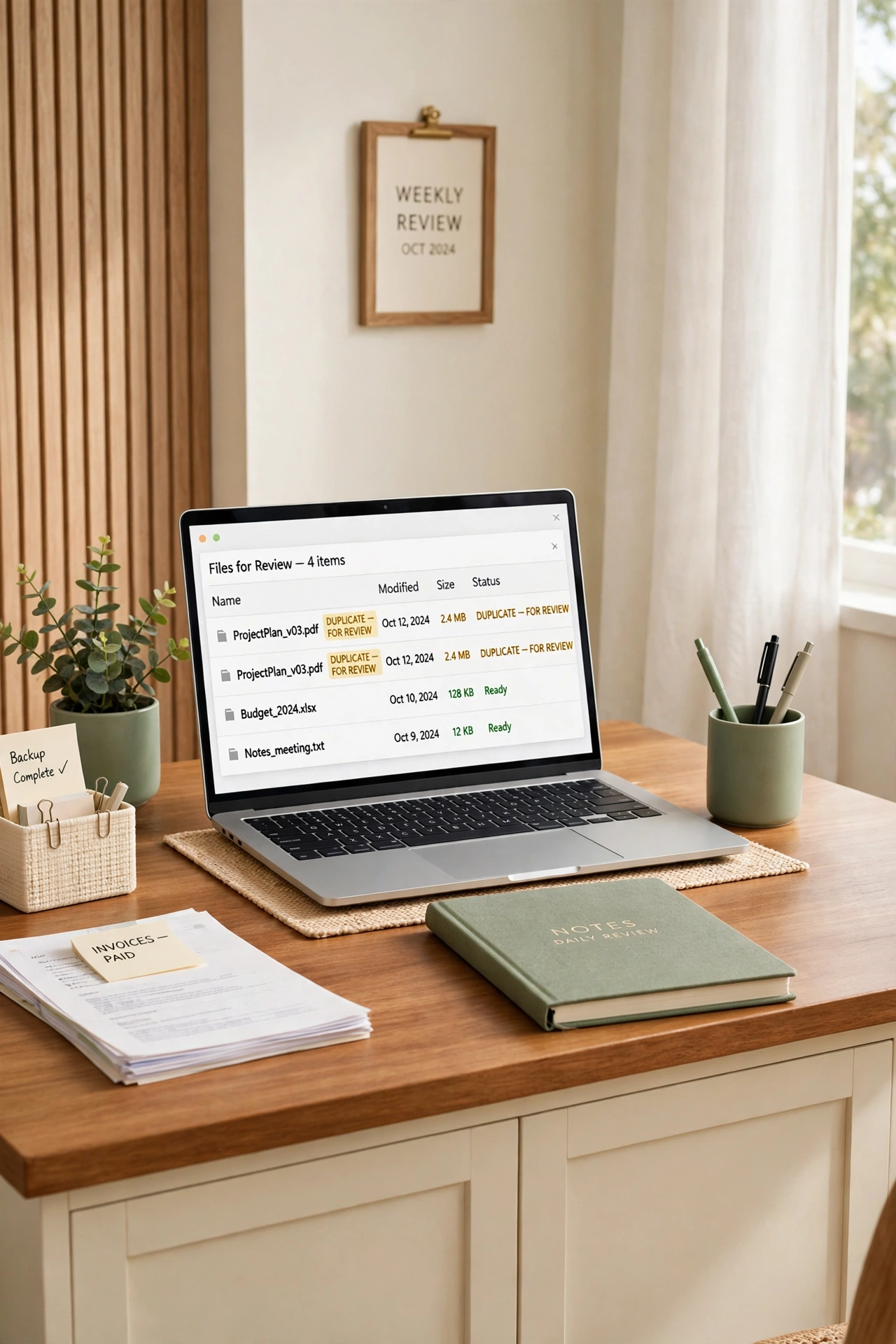
Duplicates creep into every filing system, from repeated scans to multiple downloads of the same statement. Once each season, search the master folder for common duplicate patterns, such as files ending in copy or a number in parentheses, and compare the files before deleting the extra copies. Keep the clearest, best-named version and remove the rest.
Work through one category folder per session so the review stays short and focused. After deleting duplicates, empty the trash or recycle bin only after confirming that the kept copies open correctly. A seasonal duplicate review keeps storage lean and search results clean, without the risk of deleting a needed original.
31. Teach Every Family Member the Same Filing System
A filing system only works when the people who use it share the same habits. Hold a short family walkthrough of the master folder, the naming rule, and the inbox habit, and show one real example of filing a new document from start to finish. A fifteen-minute lesson prevents months of misfiled papers.
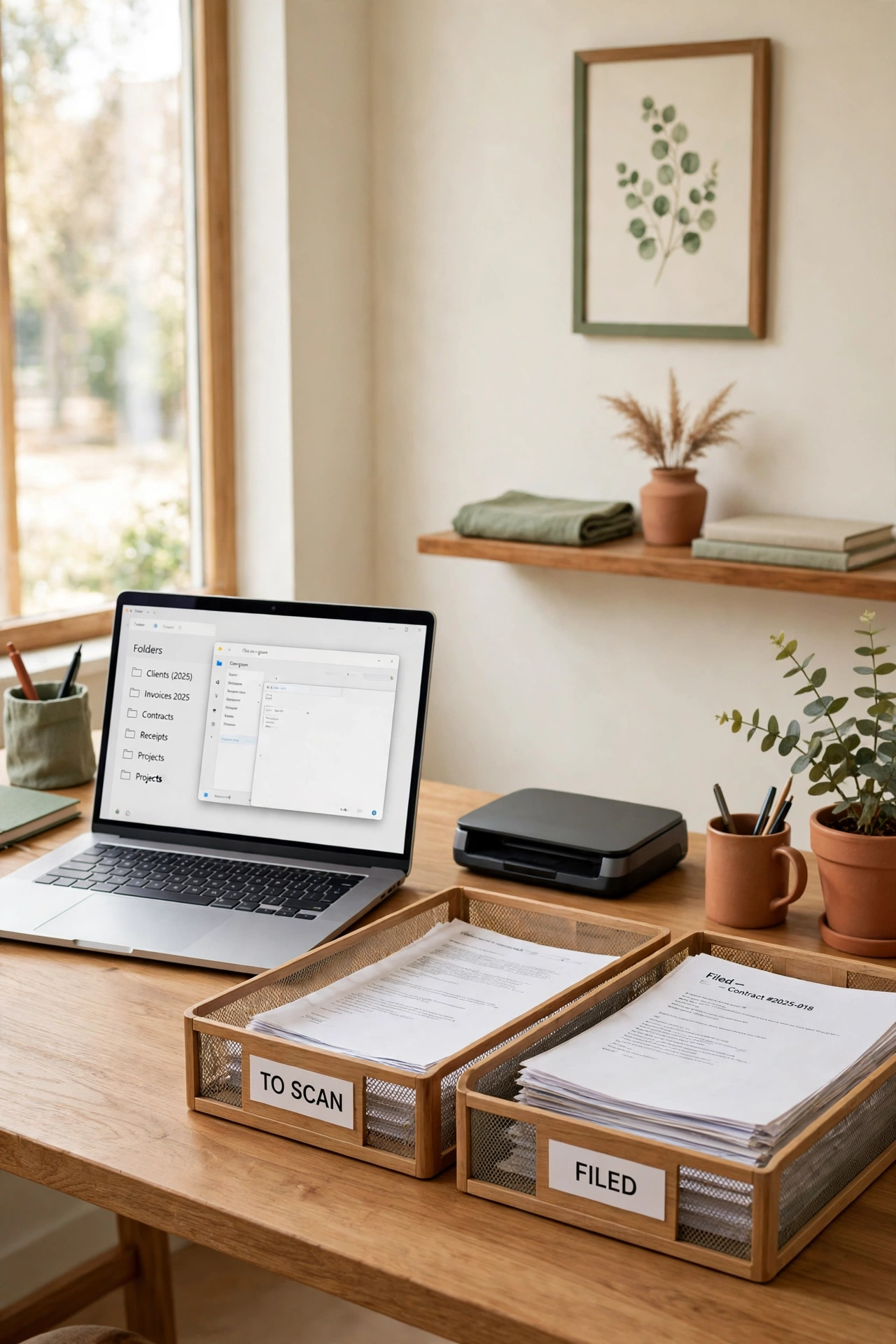
Post the quick reference sheet near the desk where scanning happens, and agree on one person to handle the weekly ten-minute routine if others forget. Keep a small scanning station tidy and ready, with the scanner, a tray for papers to scan, and a tray for papers already filed. These desk drawer organization ideas can help you keep the station supplies neat and ready for the next filing session. When everyone follows the same simple system, family documents stay findable for years.
Conclusion
Digital file organization for family documents does not require perfect software or a perfect memory. It requires one master folder, one naming rule, one inbox, and a short weekly routine that keeps new files moving to the right place. Each idea in this list adds one small layer of order, and together they build a system that stays calm even as family life grows busier.
Start with the master folder and the naming rule this week, then add the inbox, the backup routine, and the emergency folder one at a time. Your future self will thank you the next time a form, a receipt, or a record is needed on short notice. A tidy digital system gives your family more than organized files. It gives you time, confidence, and peace of mind.
Frequently Asked Questions About Digital File Organization Ideas for Family Documents
How should I name digital files for family documents?
Use one pattern for every file, with the date first in year-month-day order, followed by a short description and the category. A name like 2026-03-14-Dental-Visit-Summary is clear, sorts in time order, and stays easy to search. Avoid vague names like scan or document, and use the same pattern for every new file.
What is the best folder structure for family documents?
Start with one master folder, then add top-level folders for the main categories your household uses, such as Finance, Medical, School, Home, and Legal. Add one folder per family member for personal records, and keep subfolders shallow and consistent. A simple structure with clear names is easier to maintain than a deep structure with many levels.
How often should I back up family documents?
Back up the master folder to a second location at least once a month, and after any major addition such as tax filing or a home purchase. Keep one copy in cloud storage and one copy on an external drive in a different location. After each backup, open a few files from the backup copy to confirm they work correctly.
Should sensitive family files be password protected?
Yes, store tax returns, legal scans, and financial account documents in a password-protected or encrypted folder, and limit access to the adults who need it. Keep the password in a trusted password manager, not in a note inside the same folder. A single protected folder is easier to guard than sensitive files spread across many locations.
How do I keep a digital filing system from getting messy again?
Use one inbox folder for all new files, follow one naming rule, and spend ten minutes each week filing new arrivals. Archive closed years once a year, review duplicates each season, and keep a quick reference sheet inside the master folder. Small, regular habits keep the system tidy far better than occasional large cleanups.

Hi, I’m Emily! I turn messy corners into cozy, organized spots. DreamNestDecor is where I share simple, practical home ideas — decor, organization, and small-space solutions that work in real life, not just in photos. Every idea here is carefully researched before it’s shared.